

Quick Summary: A slow RDP session is often caused by high latency, the delay between your device and the remote server. You can measure it with a ping test; it reduces the lag by improving your connection, choosing a closer server, choosing bandwidth-heavy apps, and adjusting RDP visual settings. You will learn everything here.
Have you been facing issues with slow Remote Desktop Protocol (RDP) connections? When your RDP is lagging, it affects your productivity and makes remote work annoying.
Slow RDP can happen for many reasons, from network issues to outdated drivers.
Most latency problems can be fixed with simple troubleshooting steps. If you’re working from home, managing servers, or supporting clients remotely, you don’t have to live with slow connections.
In this guide, we’ll share proven methods to identify what is causing your RDP lag and fix it permanently. You’ll learn quick fixes that work immediately, with solutions to keep your remote desktop running smoothly.
There are no technicalities, just simple ways to explain the fixes so that anyone can follow along to get fast and reliable remote access.
Let’s get your RDP working now.
- The Real Reason Your RDP Feels Slow (It’s Usually Latency)
- Latency vs. a Truly Slow Server: Know the Difference First
- Signs Your RDP Problem Is Latency (Not Something Else)
- Quick Ways to Measure Your RDP Latency
- Top Causes of High RDP Latency
- How to Fix a Slow, High-Latency RDP
- Speed Fixes That Take Under a Minute Each
- Could Your Provider Be the Problem?
- Frequently Asked Questions (FAQ)
- Conclusion:
The Real Reason Your RDP Feels Slow (It’s Usually Latency)
When you’re using RDP, you might assume the problem is slow internet speed. When your RDP feels slow, it’s usually not because your internet is slow, but it is because there is a delay between when you click something and when it actually happens.
Latency is usually related to the network path between your computer and the RDP server.
Think of it like sending a message across a long distance. Even if the message travels on a fast road, if the distance is far, it takes longer to arrive.
Latency vs. speed: what’s the difference?Speed: how much data you can transfer per second. Latency: how long it takes for data to travel.
RDP is extremely sensitive to latency.
Even a small delay can feel noticeable. A 100ms delay (one-tenth of a second) might seem tiny, but when you’re typing or moving your mouse, it feels slow and frustrating.
Latency vs. a Truly Slow Server: Know the Difference First
Before you start fixing anything, you need to figure out what’s really causing your problem. Is it the latency, or is your remote server actually underpowered?
The solution is completely different for each, and choosing the wrong one wastes your time.
Let’s break down the key difference so you can understand and know exactly what you’re dealing with.
| Aspect | Latency Issues | Slow Server Issues |
|---|---|---|
| What you feel | Delay between your action and response. | Processing or loading times become slow. |
| Typing experience. | Letters appear one by one with a pause. | Letters appear normally, but programs won’t open. |
| Happens because of | Network distance, routing, or connection quality. | Underpowered hardware or too many background programs. |
| Speed results. | Fast download speeds but still feels slow. | Slow speeds or low usage despite slowness. |
If you get the right diagnosis, then you have the right solution for everything. If you think you have a slow server but it’s actually latency, you’ll spend money on upgrades like server hardware upgrades, more RAM, or even a more powerful hardware upgrade, which won’t even help.
On the other hand, if you’re struggling with a slow server and you try to fix the slow remote desktop network, nothing will improve.
So you need to understand the right cause to find the right solution.
Signs Your RDP Problem Is Latency (Not Something Else)
RDP latency means there is a delay between your action and the response from the remote server. For example, you click a folder, but it opens one or two seconds later.
What Causes RDP Latency to Worsen:
Microsoft even says that unstable connections, network saturation, and high latency are common causes of input delay in remote sessions.
Here are some signs that your RDP problem is latency.
Mouse & Keyboard Feel Delayed
One of the clearest signs of RDP latency too high is a delay after clicking, typing, or moving the mouse.
You may notice that:
This usually means that your input has to travel from your computer to the remote server, and the server’s response has to travel back.
The faster your internet package, the less likely it is that the connection still has high ping or an unstable route.
Screen Updates in Chunks or Freezes
Another common sign is that the remote screen does not update smoothly. The display may freeze for a few seconds and then suddenly show server changes at once.
For example:
This generally indicates delayed or interrupted delivery of screen data.
It can happen when the network is congested or your RDP connection is using an inefficient route and other network inspection systems that can add delay to RDP traffic.
Fine on Fast Internet, Still Laggy
A fast internet plan does not automatically guarantee a responsive RDP session.
Download speed measures how much data your connection can transfer, while RDP responsiveness depends heavily on latency and the route to the server.
This is like a latency issue when:
For instance, your connection may show 300 Mbps in a speed test, but the RDP server may be in another region or country.
Data may also pass through a congested ISP route or corporate firewall before reaching the server.
Worse at Certain Times of Day
If RDP works well in the morning but becomes slow during the evening or business hours, network congestion is a strong possibility.
This pattern can occur because:
Latency may increase during these periods, even when your internet speed still appears acceptable. You may also notice more packet loss, fluctuating ping times, or occasional disconnections.
You should always test the connection when RDP is working normally and again when it feels slow. Compare the average response time and the highest response time.
Testing at different times is also a useful way to identify the causes and confirm if the problem is latency or not.
Quick Ways to Measure Your RDP Latency
You do not need advanced monitoring software to get a basic idea of your RDP latency.
In order to check if your RDP connection is good, you run a ping test, look at the connection indicator in the RDP client, and see how fast things respond when you type or open folders.
Remember that latency is measured in milliseconds (ms). It is the time required for data to travel from your computer to the RDP server and back. This is also called round-trip time (RTT).
The Built-In Ping Check
This is the quickest method to check latency. Ping the IP address of your RDP server by following these steps:
Command: ping YOUR_SERVER_IP -N 20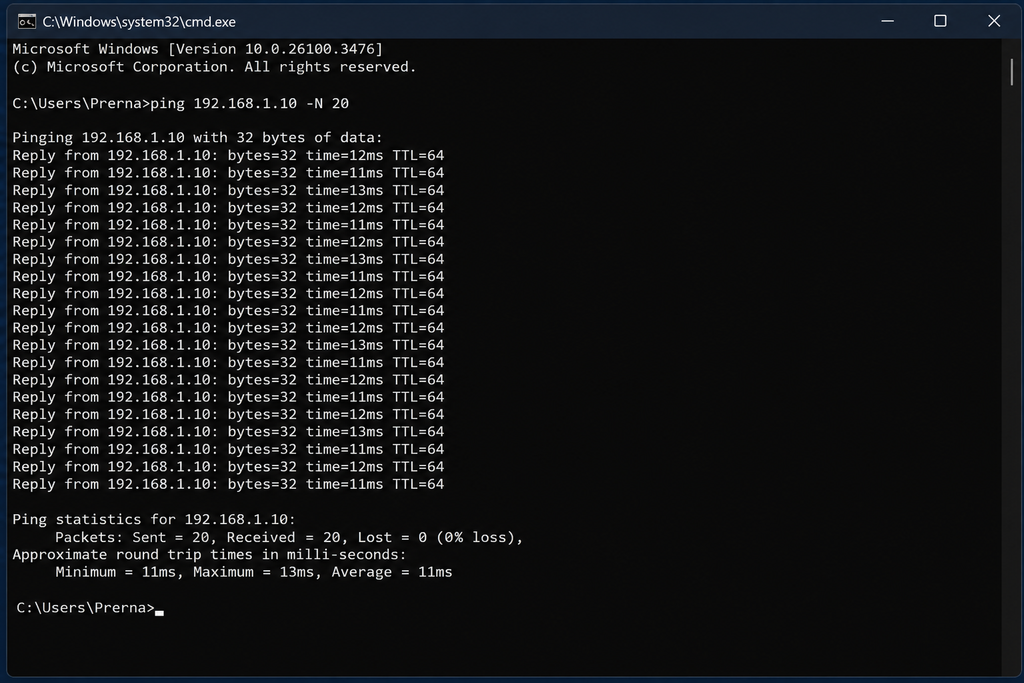
Please remember: Replace YOUR_SERVER_IP with your server’s IP address. Check the average response time and look for request-timed-out messages. Lower and consistent results usually indicate a better connection.
The average latency here shows 11 ms, which is an amazing and stable RDP connection. It means that the data takes only 11 milliseconds to travel to the server and back.
Reading Your Connection Quality Inside RDP
After connecting, move your pointer to the top of the screen to display the RDP connection bar. The connection indicator shows if the session is responding normally or experiencing network problems.
There are fewer warning messages, but delayed input may indicate high latency or low available bandwidth. This indicator offers a quick overview, but it does not identify the exact cause.
What the Numbers Mean (Latency Ranges)
Latency is measured in milliseconds (ms).
It shows how long data takes to travel from your computer to the RDP server and back. Given below is a table of latency ranges; refer to this and understand how good or poor latency works.
| Latency | RDP experience |
|---|---|
| Below 50 ms | Very smooth and responsive. |
| 50-100 ms | Generally good for your regular work. |
| 100-150 ms | Usable, with slight delay possible. |
| 150-200 ms | Noticeable delay when typing, scrolling, or opening files. |
| 200-500 ms | Clearly laggy and uncomfortable to use. |
| Above 500 ms. | Poor, with freezes and long delays. |
If you want to have the best RDP experience, keep latency below 100 ms where possible. It is a known fact that round-trip latency below 150 ms is suitable for a good RDP experience, while higher latency can affect responsiveness.
Also, keep checking the consistency of your latency. A stable 120 ms connection may work better than one that changes between 40 ms and 400 ms.
Top Causes of High RDP Latency
High RDP latency can come from your location, internet connection, ISP route, or the remote server itself. You need to find the correct cause because upgrading your internet speed will not fix every type of RDP lag.
Let us see the number of main causes of your high RDP latency.
You’re Too Far From the Server
The farther your computer is from the RDP server, the longer data takes to travel between them. This increases round-trip time and can make mouse clicks, typing, and screen updates feel delayed.
A server located in another country may feel slower than one located near your city.
Choosing a data center closer to your users is one of the simplest ways to reduce latency. It is highly recommended to check the round-trip time to the region hosting the remote desktop.
Your Network Is the Bottleneck
Your local network may be causing the delay, especially when using weak WiFi or a busy shared connection. Downloads, video streaming and multiple connected devices can consume bandwidth and increase packet loss easily.
Try connecting through an Ethernet cable or another internet connection. If RDP improves, check your Wi-Fi signal, router, bandwidth usage, and background downloads.
VPNs and proxy services can also add extra delay to the connection.
ISP Routing & Congestion
Your ISP may send RDP traffic through a longer or congested route to the server. This can again cause high or unstable latency even when your internet speed test looks good.
If your latency suddenly increases, the problem may be with the ISP route or an overloaded network connection. Test the server from another ISP or mobile hotspot to compare the results.
The Server Is Doing Too Much
Sometimes the network is working properly, but the RDP server is overloaded.
High CPU or memory usage, slow disk performance, or demanding applications can make the remote desktop appear laggy or slow.
Check the server in Task Manager while the problem is occurring. If CPU, memory, or disk usage remains very high, close unnecessary applications and reduce the number of active users or upgrade the server resources.
Network troubleshooting should be combined with checking the session host’s resource usage because desktop resources can also become the issue.
Once you identify if the problem is your distance, your network, or server load, you can easily apply the right solutions instead of changing RDP settings randomly.
How to Fix a Slow, High-Latency RDP
You cannot remove the physical delay caused by a distant server, but you can reduce the effect. Start with the server location and network connection, and then you can adjust your RDP settings to send less visual data.
We’ll help you understand how you can easily fix a slow and high-latency RDP and give yourself a smooth RDP experience.
Move to a Server Closer to You
You need to choose an RDP or VPS server located near your users. A shorter network usually means lower round-trip latency and faster response to mouse clicks, typing, and screen updates.
You can even compare locations before migrating. A nearby server with stable latency is often better than a cheaper server in a distant region.
Go Wired, Not Wireless
You should always use an Ethernet cable instead of Wi-Fi when possible. Wired connections are usually more stable and less affected by signal interference, distance from the router and other wireless devices.
If you must use Wi-Fi, move close to the router, use the 5 GHz band, and avoid connecting through a weak or overloaded network.
We always recommend checking for unstable local connections when users experience input delay.
Trim Your RDP Visuals for Speed
Reduce the amount of graphics that are sent during the session.
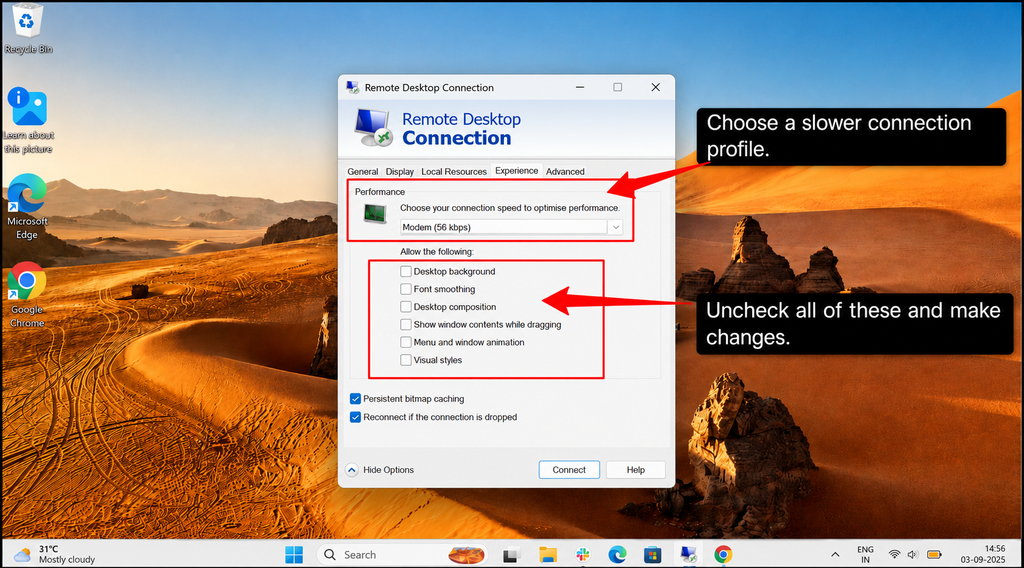
You should also turn off options such as desktop background, font smoothing, menu animation, window contents while dragging, and visual styles.
All of these changes help reduce the screen data and can make your RDP more responsive on a slow or high-latency connection.
Turn On Compression
Compression can easily reduce the amount of data sent between your computer and the server. This may help when bandwidth is limited or several users share the same connection.
On your managed Windows Server environment, an administrator can easily review the RDP compression policy in a few steps, like
Path: Computer Configuration >> Administrative Templates >> Windows Components >> Remote Desktop Services >> Remote Desktop Session Host >> Remote Desktop Environment.
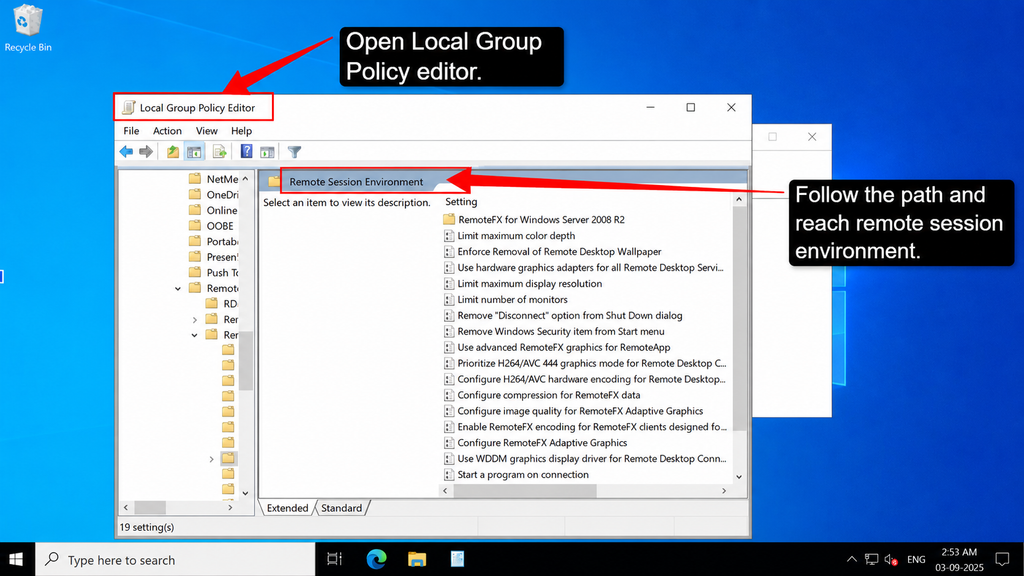
You should use a setting that prioritizes lower network bandwidth where it’s available. Compression may use additional CPU, so monitor the server if it already has high processor usage.
Free Up Your Local Bandwidth
Pause large downloads, video streaming, software updates, and file synchronization while using RDP. These activities can easily increase blockage, packet loss, and problems on your connection.
You need to check other devices using the same router. If RDP improves when these activities stop, the problem is likely local bandwidth rather than the RDP server.
If your RDP still feels slow after all these changes, check your latency at different times and monitor the server’s CPU, memory, and network usage. This will help you determine if the problem is caused by your connection, the route to the server, or the server itself.
Once you understand the cause, you can choose the right solution instead of changing settings unnecessarily.
Speed Fixes That Take Under a Minute Each
If you don’t want to get into the complexity of steps, then you can try these quick changes before making major server or network adjustments:
Some of these quick checks can often improve your RDP responsiveness within minutes. If the lag continues, test your latency and server resources to find the actual cause.
Could Your Provider Be the Problem?
Yes, your provider could be the problem and may be causing high RDP latency if it offers only distant server locations, poor network routing, or overloaded hardware.
You should always choose a host with a data center close to your users, stable routing, and reliable server resources.
Before purchasing a plan from a low-latency provider, such as RDPHostings, test its server IP and check its location, network quality, performance support and resource policy. This helps ensure that you are choosing a responsive host and not a low-priced one.
Frequently Asked Questions (FAQ)
How do I know if my RDP is slow because of latency?
Open Notepad on your remote desktop and start typing. If there’s a noticeable pause after each keystroke before the letter appears, you have latency issues. Also, run a ping test to your server; anything above 100 ms indicates latency problems. If typing feels normal but programs open slowly, your server hardware is the issue, not latency.
What latency is too high for RDP?
If you’re seeing latency above 150 ms or even higher, then you definitely have a problem that needs fixing. Anything over 200 ms makes your RDP nearly unusable for active work.
Does a faster internet plan fix RDP lag?
No, RDP lag usually comes from latency and not speed. A faster plan helps if you’re downloading large files but won’t fix the delay between your actions and the server’s response. Test your current latency first, and then if it’s high, upgrading internet speed won’t solve it. You need to reduce RDP lag by fixing the distance or improving routing instead.
Why is my RDP slow at night or peak hours?
Network congestion. When everyone’s online, your data travels through crowded routes, increasing latency, and speeding up your RDP connection that might get lower priority. Peak hours also mean your server might be handling more users, slowing it down. Try connecting during off-peak times to confirm this is the issue.
Can moving server location really speed up RDP?
Yes, if your server is physically far away, in a different country or coastal region, moving it closer to you dramatically reduces latency. A server 2000 miles away might have 80 ms latency, while one 200 miles away could be 20 ms. This is one of the most effective fixes.
Is RDP lag my fault or the provider's?
It completely depends. You can do some tests, like check your internet speed, ping your server, and monitor your local CPU usage. If your speed is good, ping is high, and your CPU is low, it’s a network routing issue. If your CPU is maxed out, it’s your computer’s problem, but if the server is far away, that’s a service choice issue.
Conclusion:
RDP slow, high latency can make a fast server also feel slow, but the problem is usually easier to identify than it first appears. Check for delayed input, frozen screen updates, high ping, and changing latency. You can use the built-in ping command and RDP connection indicator to measure performance.
Then you can try simple fixes such as switching to a wired connection, closing bandwidth-heavy apps, reducing visual effects, and choosing a server closer to your users.
Also check the server’s CPU, memory, and disk usage because overloaded resources can create similar symptoms. If latency remains high, the provider’s routing hardware location may be responsible.
Test your provider’s network before purchasing and choose a host that offers nearby locations with dependable support.
A few basic checks can help you restore a smoother, faster, and more reliable RDP experience.
💡 Most Loved Article!