
Quick Summary: RDP copy-paste usually stops working because clipboard redirection is disabled or the rdpclip.exe process has crashed. Fix it in 2 minutes by restarting rdpclip.exe through Task Manager >> If that fails, enable clipboard in Remote Desktop settings. Most of the issues will be solved in this guide; if it doesn’t work, you can check the client’s clipboard setting and the server’s remote desktop redirection policies.
Are you stuck copying text into your remote desktop? It becomes frustrating when paste just won’t work, right?
RDP copy-paste failures are one of the most maddening tech issues, especially when you’re trying to be productive. One moment you’re copying credentials, the next moment you’re staring at an unresponsive paste field, thinking, “What went wrong?”
But don’t worry, because this is not a complex network issue requiring days of troubleshooting. Many of the clipboard problems can be easily diagnosed by checking the client settings or by checking the server-side redirection policies and the clipboard process.
If you’re an IT admin managing multiple sessions or a remote worker needing that clipboard to sync, then this guide becomes your rescue. We’ll tell you exactly the proven solutions with proper screenshots.
Just follow this, and by the end, your copy-paste will be working smoothly.
Let’s start and fix your problem.
- Why Is Copy-Paste Not Working on RDP?
- The 2-Minute Fix (Restart rdpclip.exe)
- Fix 2: Enable Clipboard Redirection in RDP Settings
- Fix 3: Enable Clipboard Redirection on the Server (Group Policy)
- Fix 4: Fix File Copy-Paste (Drive Redirection)
- Fix 5: Restart the Remote Desktop Session
- Still Not Working? Advanced Fixes
- Why Copy-Paste Keeps Breaking on RDP (Prevention)
- Does Your RDP Provider Block Clipboard Sharing?
- Frequently Asked Questions
- Conclusion: How to fix copy-paste not working in RDP
Why Is Copy-Paste Not Working on RDP?
Copy-pasting on RDP is not working because something is preventing your computer from sharing clipboard data with the remote PC.
You can think of this like two phones trying to text each other, but if the connection is broken, messages won’t go through.
When it fails, it’s almost always due to one of these reasons.
Windows uses a process named rdpclip.exe on the remote machine to keep the local and remote clipboards in sync.
This process is known to crash or hang, especially after copying large or complex data.
When it’s not running, the RDP clipboard channel effectively stops. You see, copy-paste worked earlier in the session but then suddenly stopped with no error.
Organizations and hardened servers often block clipboard sharing for security reasons. This is controlled by Group Policy; you just have to follow one path.
Go to Computer Configuration>> then click on Administrative Templates>> Windows Components >> Remote Desktop Services>> Remote Desktop Session Host >> then move to Device and Resource Redirection >> and select “Do not allow clipboard redirection.”
Policy Enabled = Clipboard is BLOCKED.
In simple terms, when this group policy setting is turned on, Clipboard sharing stops working completely. Copy-pasting won’t function, and it doesn’t matter what you try with it.
Policy Disabled or Not Set = Clipboard CAN WORK.
When this setting is disabled or left unconfigured, clipboard sharing is allowed. This gives you the freedom to copy and paste normally.
On your local PC, the RDP client must be configured to share the clipboard in Remote Desktop Connection (mstsc); this is under Show Options >> Local Resources >> Clipboard.
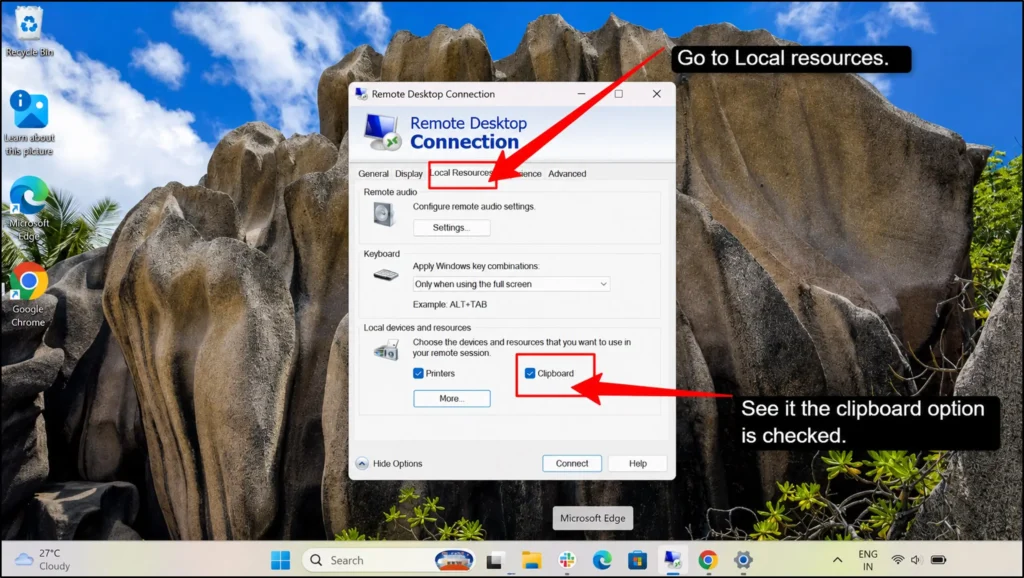
If this is unchecked, the client does not request clipboard redirection at connection time. Your copy-paste never works from the first moment you connect, even for simple text.
There are third-party clipboard utilities (history manager, cross-device sync tools) or security agents that can hook the Windows clipboard and conflict with rdpclip.exe.
When this happens, your copy-paste becomes unreliable. You might be able to copy-paste in some applications but not others. Or it stops working entirely after you install new clipboard software or security tools.
The problem is that these tools compete with redpclip.exe for control of your clipboard. When multiple programs try to manage the same clipboard at the same time, they interfere with each other and break the connection.
Copying extremely large text blocks, huge spreadsheets, or many files at once can even overload the RDP clipboard channel or cause rdpclip.exe to hang.
This is a known practical limit of the redirection mechanism. You can see small copies work easily, but big copies, like hundreds of rows or many files, can make copy-paste stop working.
These are some of the core and accurate causes that explain almost all RDP copy-paste file not working cases.
Once you find all these culprits and fix them, your copy-paste will work smoothly for months or years without any more issues.
In the next section, we’ll take you through the most effective fixes, starting with the easiest one first.
Let’s get your clipboard working again.
The 2-Minute Fix (Restart rdpclip.exe)
This is the quickest and most effective solution. RDPclip.exe is the small program that handles all clipboard sharing between your local computer and the remote desktop. When it freezes or crashes, restarting it solves the problem up to 90% of the time. Let’s see how:
If that does not work, right-click on the taskbar at the bottom of your screen and select Task Manager from the menu.
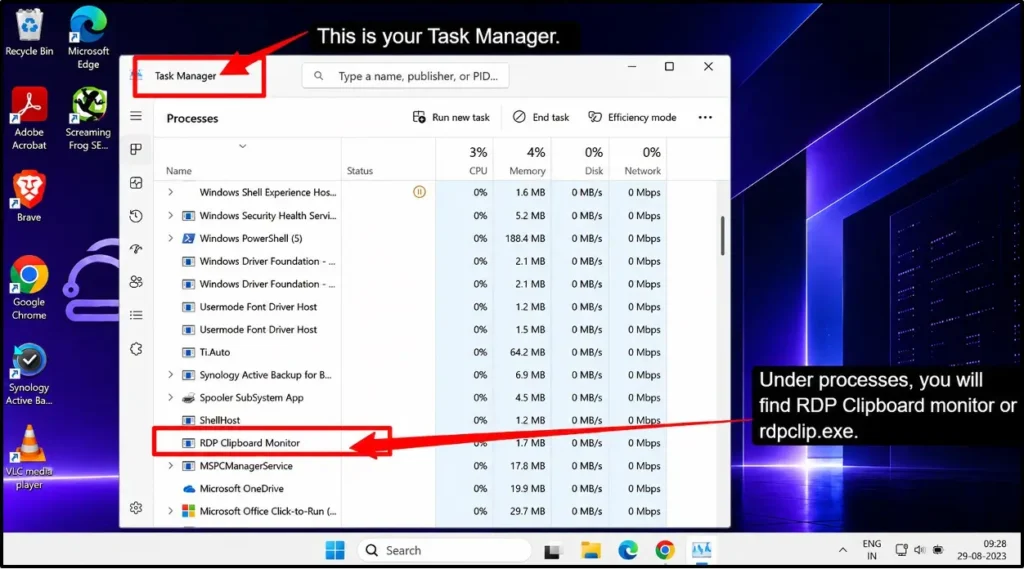
Click rdpclip.exe to select it, then click End Task at the bottom right. Don’t worry, because this is completely safe and won’t harm your computer at all.
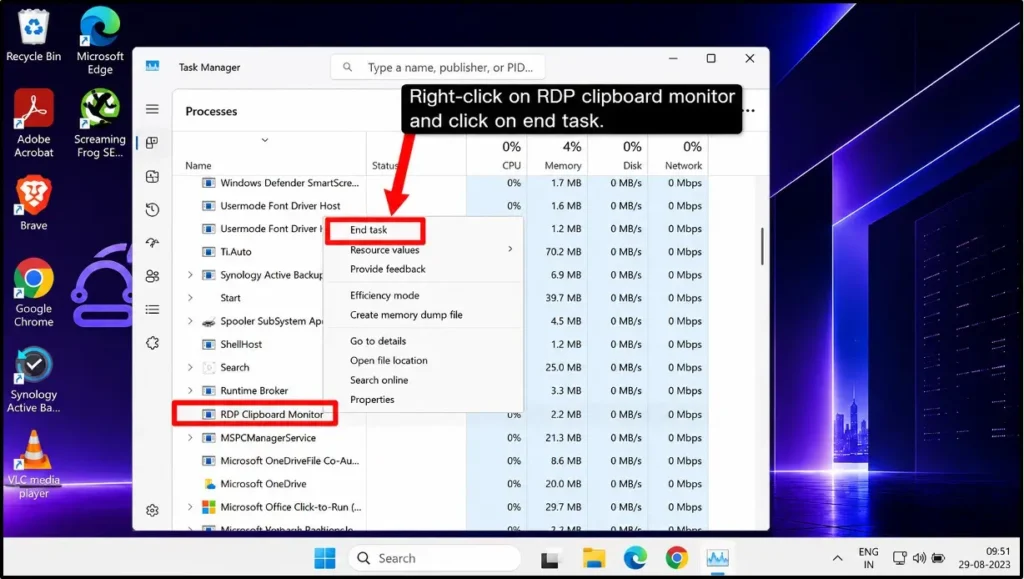
Congratulations, you have just solved the problem in 2 minutes. There are zero complicated steps; it’s just a simple restart of one small problem.
This fix works because rdpclip.exe sometimes gets stuck or loses its connection to your local clipboard. A quick restart clears out anything that was blocking it and reestablishes the link.
Fix 2: Enable Clipboard Redirection in RDP Settings
If restarting rdpclip.exe did not work, then the problem might be that clipboard redirection is turned off. This is a safety setting, as some organizations disable it intentionally.
But if you need copy-paste to work, you can definitely turn it on.
Here’s how you can do it:
Step 1: On the Local RDP Client (Before Connecting)
Before you connect to the remote desktop, you need to adjust your RDP connection settings on your local computer (the one you’re connecting from).
Step 2: Open the Remote Desktop Connection application on your PC:
Step 3: Check the “Clipboard” option under Local Resources.
Check for the “Clipboard” option under Local Resources>> Once your RDP opens>> click the Show Options button or the “Options” tab at the button left to expand additional settings.
Look for the Local Resources tab and click it >> Under Local Resources, you’ll see a section called “Local devices and resources” >> Expand this section by clicking the arrow next to it.
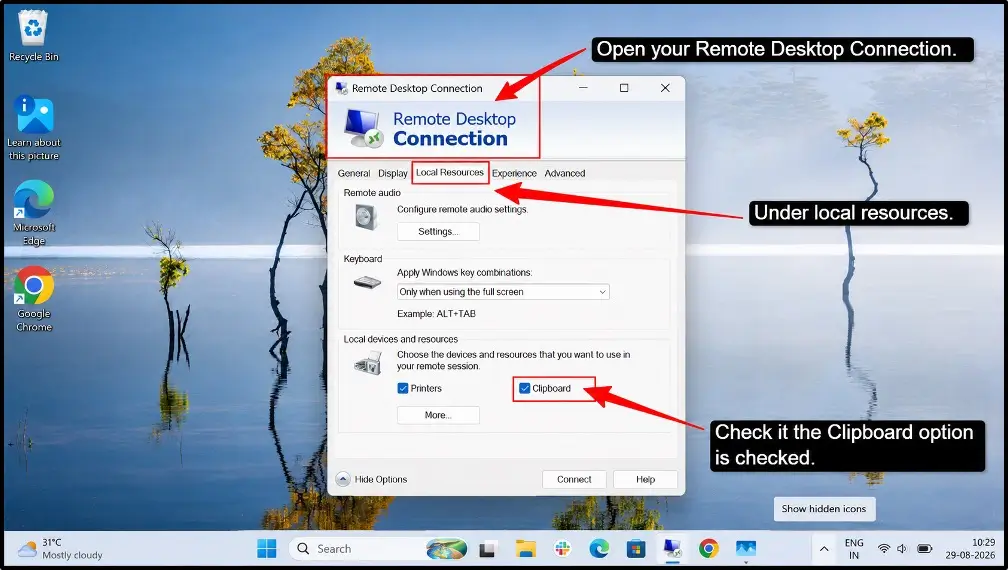
Find the “Clipboard” checkbox >> Make sure it is checked, and if it is unchecked, then click to enable clipboard RDP redirection. Now click on Connect to log into your remote desktop; clipboard sharing will now work properly.
Pro tip: If you always need clipboard access, check this setting once, and you won’t have to worry about it again for future connections.
Whenever this clipboard redirection is disabled, Windows literally blocks any clipboard data from travelling between your local computer and the remote one.
It’s like having a locked door between two rooms, and no matter how hard you try, nothing can pass through. Only enabling this setting removes the lock.
Your clipboard redirection is now enabled. You can now try copying some text on your remote desktop and pasting it. It should work smoothly now.
Fix 3: Enable Clipboard Redirection on the Server (Group Policy)
Sometimes the server itself has clipboard redirection disabled. If you have administrator access on the remote computer, you can enable it here.
Note: This requires admin rights; if you don’t have them, ask your IT department.
Computer Configuration >> Administrative Templates >> Windows Components >> Remote Desktop Services >> Remote Desktop Session Host >> Device and Resource Redirection >> “Do not allow Clipboard redirection”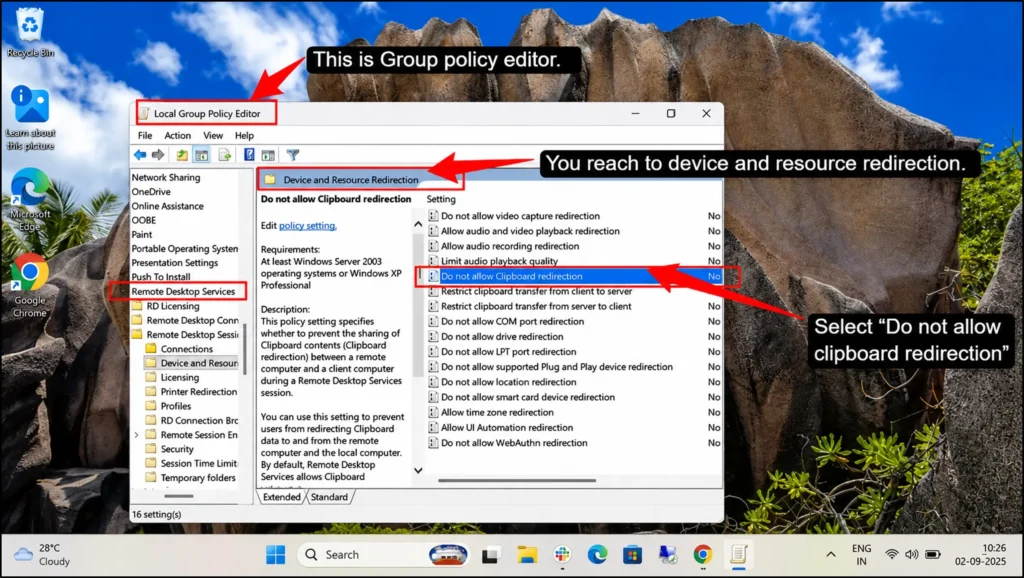
It is possible that you cannot find the group policy; this is because the group policy only works on Windows Pro, Enterprise, or Server editions. If you are on Windows Home, then you can skip to Fix 4.
Fix 4: Fix File Copy-Paste (Drive Redirection)
If you cannot copy files between your local computer and the remote desktop, then this problem might be due to drive redirection. It is a setting that lets you access your local hard drive from the remote computer. Here is how you can enable it:
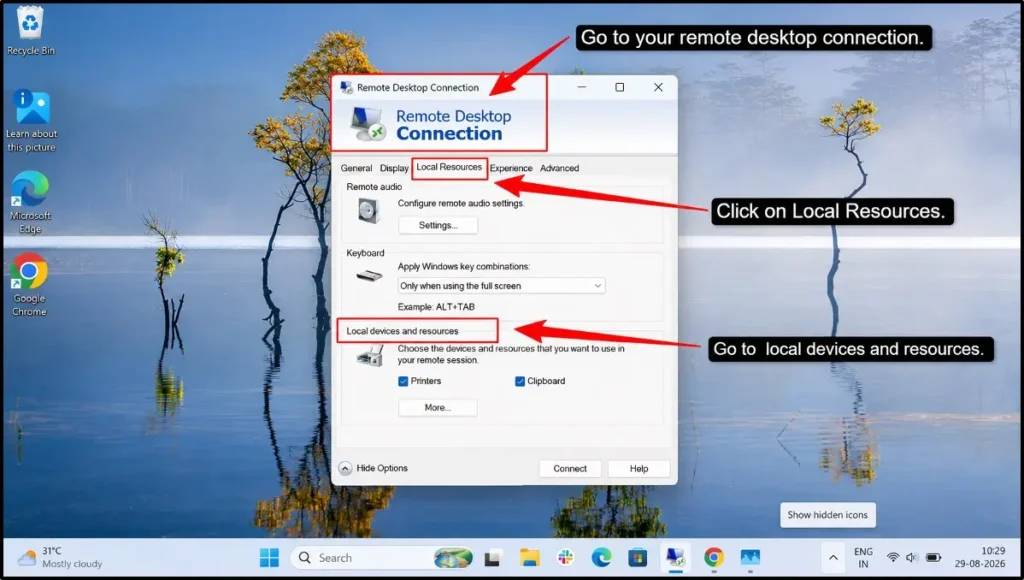
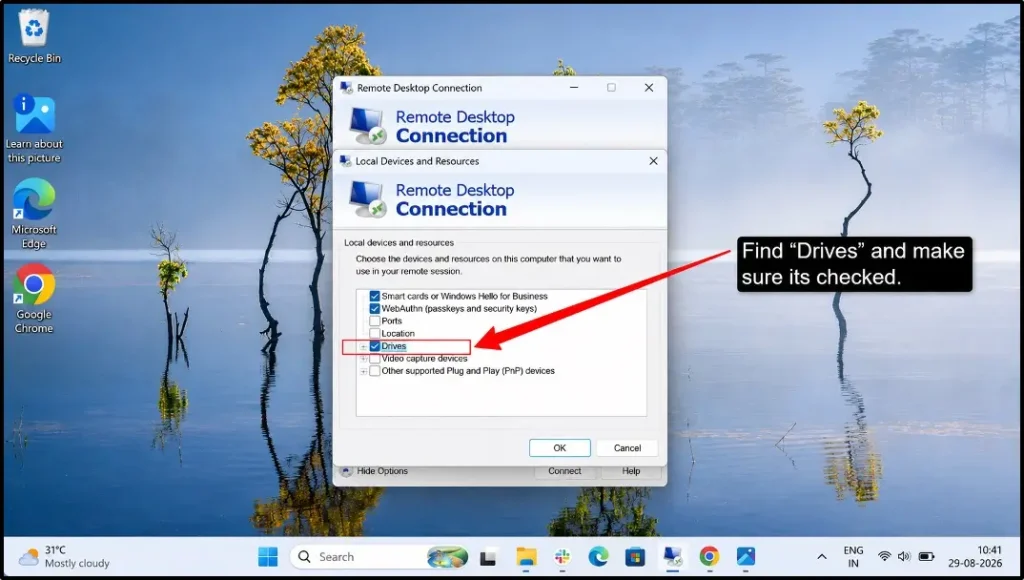
Once you’re connected, open File Explorer on the remote desktop. You should see your local drives listed (usually as “C: ON [Your Computer Name]”).
Pro tip: If you only want access to specific folders instead of entire drives, then use “Devices and resources” redirection for fine control.
You can now copy files between your local computer and the remote desktop just like normal folders. Your files should now copy and paste freely between systems.
Fix 5: Restart the Remote Desktop Session
Sometimes the simplest solution works the best. A fresh remote desktop session can clear temporary glitches and restore clipboard functionality in a few simple steps.
Here’s how it is done:
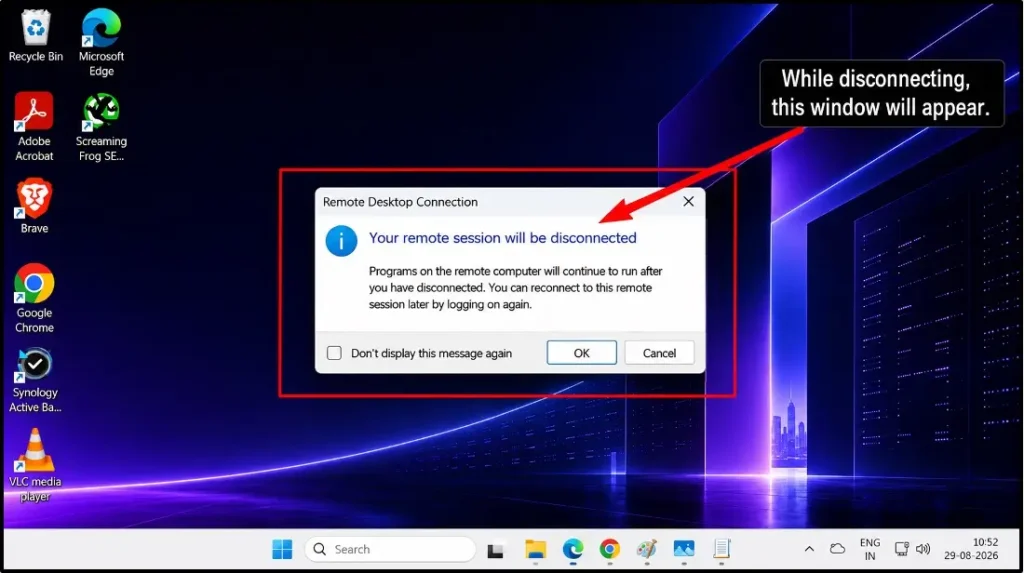
Once you are logged back in, try copying and pasting text or files. A fresh session often fixes clipboard issues that could have accumulated during your previous connection.
Over time, background processes can get stuck or lose connection. Disconnecting and reconnecting forces everything to reset and reconnect fresh. It is like turning something off and on again; although it is very simple, it’s quite effective.
Still Not Working? Advanced Fixes
If you have tried all the fixes that we have given above and still you’re facing issues, then now it’s time to go a little deeper. These are the advanced solutions that target less common causes.
Check Registry for Disabled Clipboard
The Windows Registry stores hidden settings that can disable clipboard redirection, so here is a simple way you can do it.
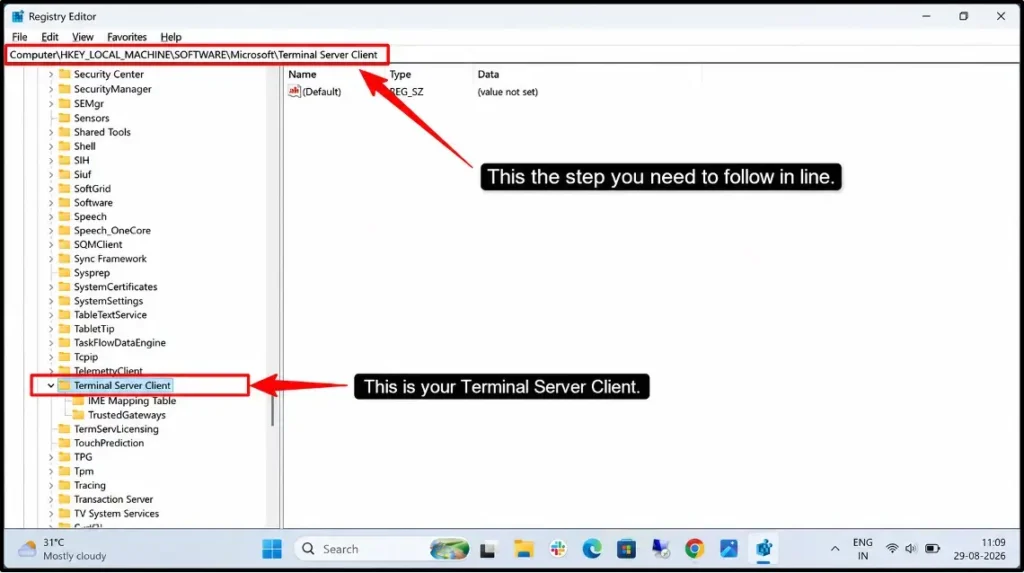
Warning: Only edit the registry if you’re comfortable doing so; otherwise, ask for IT support if you’re unsure.
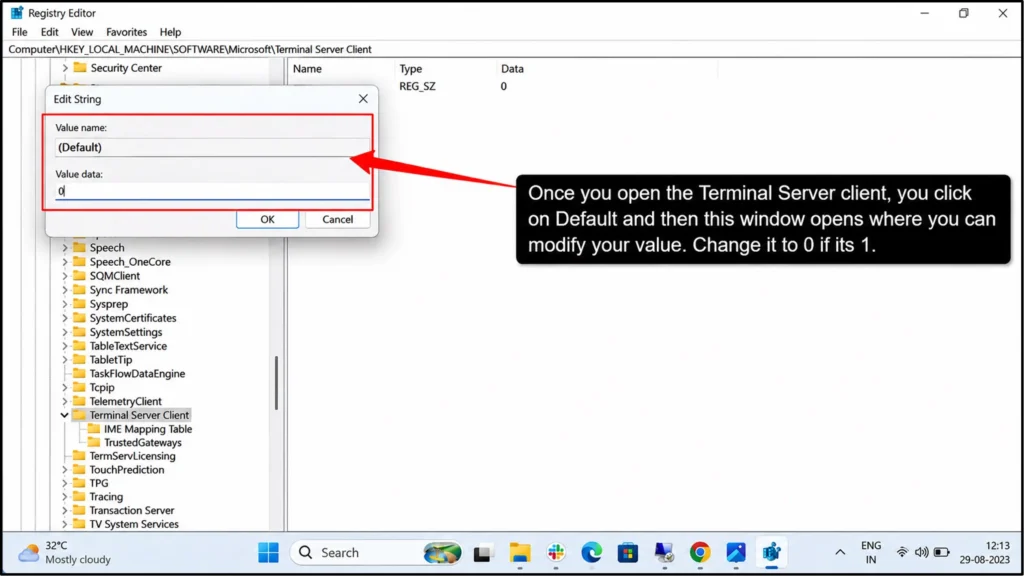
0 means clipboard redirection is enabled, 1 means it has been allowed, and 1 means it is disabled, so you can change it to 0 and fix this issue very easily. Once done, restart your remote desktop again.
Update or Reinstall the RDP Client
If you have outdated or corrupted Remote Desktop software, it can easily cause clipboard issues. So at this point, you can try both:
Update Remote Desktop:
Reinstall Remote Desktop
If updating does not work, then you can uninstall it and reinstall it again.
Contact your IT support if after all this you’re still stuck. They will provide you with a list of everything you’ve tried. They have additional tools and server-side access to diagnose what is blocking your clipboard.
Why Copy-Paste Keeps Breaking on RDP (Prevention)
If clipboard problems keep coming back, then something in your setup is causing repeated failures. But by the time you solve it one day, the problem can easily return next week.
This is not normal. Here’s what’s likely causing you to face repeated problems and fixable ways to prevent them from happening again.
The old versions of Remote Desktop have bugs that crash clipboard services.
Prevention: Keep your Windows and Remote Desktop updated. You can turn on automatic Windows updates so you never fall behind.
An unstable connection interrupts clipboard sync between your local and remote computers.
Prevention: You need to use a wired Ethernet connection instead of using your WiFi when it’s possible. If WiFi is necessary, then stay close to your router.
Antivirus programs sometimes block clipboard redirections as a “security risk.”
Prevention: Add remote desktop to your antivirus whitelist. You can contact your security team if you’re unsure how to do this.
Running too many programs on the remote desktop overloads the system and crashes clipboard services.
Prevention: Close unnecessary applications before using a remote desktop. Keep the remote desktop clean and lightweight.
Most of the clipboard problems are preventable with regular updates and proper configurations. A few minutes of setup now saves hours of troubleshooting later.
Does Your RDP Provider Block Clipboard Sharing?
Yes, not every remote desktop provider is created equal. Some intentionally disable clipboard sharing as a security feature, which means it does not matter what you do on your end; copy-paste simply won’t work.
If you’re renting a remote desktop from a hosting provider or using a corporate setup, clipboard functionality depends entirely on their configuration. No amount of troubleshooting on your part will fix a problem created by provider-level restrictions.
Frequently Asked Questions
Why did my RDP copy-paste suddenly stop working?
Usually it happens because rdpclip.exe (the clipboard service) crashes or freezes. Other common reasons include a weak internet connection, clipboard redirection being disabled, or security software blocking it. Try restarting rdpclip.exe first, and this will fix it 90% of the time.
What is rdpclip.exe?
RDPclip.exe is a small background program that manages clipboard sharing between your local computer and the remote desktop. If you don’t have this, copy-paste will not work. It runs automatically, but sometimes it crashes and needs to be restarted.
Why can't I copy files (only text) over RDP?
File copying requires “drive redirection” to be enabled, which is a separate setting from clipboard redirection. Enable it in Remote Desktop Connection under Local Resources > Drives; if only text copies work, you need to turn on drive redirection.
How do I enable clipboard sharing on RDP?
Open Remote Desktop Connection on your local computer, click on Options >> Local resources, and check the “Clipboard” box. If that does not work, enable it on the remote server using Group Policy.
Does restarting rdpclip.exe delete my clipboard data?
No, restarting rdpclip.exe only restarts the program; it does not delete anything. Your copied text stays safe, and it is completely safe to restart.
Can my provider disable RDP copy-paste?
Yes, some hosting providers intentionally block clipboard sharing for security. If this happens, ask your provider to enable it. If they refuse, consider switching to a provider that allows full clipboard access.
Conclusion: How to fix copy-paste not working in RDP
RDP copy-paste not working sounds complicated at first, but they all are almost always fixable in minutes.
Most people solve it by restarting rdpclip. exe; it is the first RDP copy-paste fix in this guide. If that does not work, you have five more proven solutions to try.
Each one targets a different cause, so you’re bound to find the culprit. Clipboard redirection, drive access, Group Policy, and a fresh session, one of these will definitely work.
Copy-paste failure isn’t a sign your computer is broken. It is just a setting that got turned off or a service that crashed.
Neither of them requires any of the expensive repairs or hours of troubleshooting. Go ahead, and within 2 minutes, you’ll be copying and pasting text again.
💡 Most Loved Article!