
You’re on your Mac device, but the file or software you need only works on Windows. It’s frustrating; we know.
Most guides don’t discuss the real problem.
They just say “install this app, click Add PC” and assume you already have a Windows server ready to connect to, with its IP address, username, and password in hand. But what if you don’t have a Windows PC?
That’s the gap we’ll fill in.
Basically, to connect from your Mac (means, your PC), you need 3 main things: the IP address of the Windows system, a username, and a password. Using them, you can easily set up Remote Desktop from Mac to Windows in just a few clicks.
Now, this Windows system:
This guide will cover both issues and give you real, step-by-step insights.
What is a remote desktop server?
A remote desktop server gives you a live Windows or Linux machine running remotely with its own dedicated IP, its own resources, its own complete environment, absolutely separate from your local device
Let’s say you’re on Mac or Linux, or let’s say you’re on your own old laptop; you get full Windows access on your screen instantly. It works with a different IP address and creates a workspace for you. You can use it for your office work and heavier tasks.
When you use RDP, you can see your Windows OS on your Mac.
You can click on things and type just like you’re sitting and using your Windows server. It works by creating a connection between your Mac and that PC using a different IP address.
You can use it to access your work PC from home and run software that only works on Windows. It just works the same way. It absolutely doesn’t matter at all if you have a Mac or Linux operating system; you can still install RDP and connect to a Windows server, and it will feel the same as Windows.
Just follow along; it involves very easy steps, and you’ll understand everything from start to end.
What You’ll Need Before You Start
Before you even start, we’ll first make sure that you have got everything ready. It only takes a couple of minutes to check, and it will save you from getting stuck midway.
Mentioned below are some of the major requirements that you should know before you start the process.
| Requirements | Details |
|---|---|
| A Mac | Any recent macOS version. |
| Microsoft Remote Desktop App | Free; download from the Mac App Store. |
| Windows machine to connect to | You’ll need its login details. |
These are your minimum requirements, which you need to keep ready before you start the process of setting up your RDP from Mac to Windows.
Note:
If you don’t already have a Windows machine to connect to or you just want to test it, you can rent an RDP server from a reliable Windows RDP provider, like RDPHostings, and you can easily understand how you can connect to Windows on your Mac.
We have used this provider for the setup process because it gives you instant login details for your RDP server so you can easily start connecting right away.
Remote Desktop from Mac to Windows – step-by-step guide
Using a Mac and a Windows operating system together is now easy with the help of an RDP server. You don’t have to switch between the systems anymore.
On the same PC that you have in front of you, you can work on Mac OS (your default system OS), and you can also work on a Windows OS (use software that exclusively works on a Windows setup)
Remote Desktop can easily make this happen, and you can control and see your Windows computer from your Mac.
Setting this up is really very simple; you just need a few seconds and some basic login information.
We have given here easy and navigable steps so that you can set up your remote desktop from Mac to Windows.
Here’s exactly how you can do it step by step.
Note:
In order to set up your RDP from Mac to Windows, you need an RDP server from a reliable RDP provider.
Here, we’ve taken RDPHosting for the setup process! First off, it offers an expert plan (takes 24 hours to activate) for free and provides you with login access info instantly after activation & secondly, it offers a highly secure connection due to multi-layered encryption
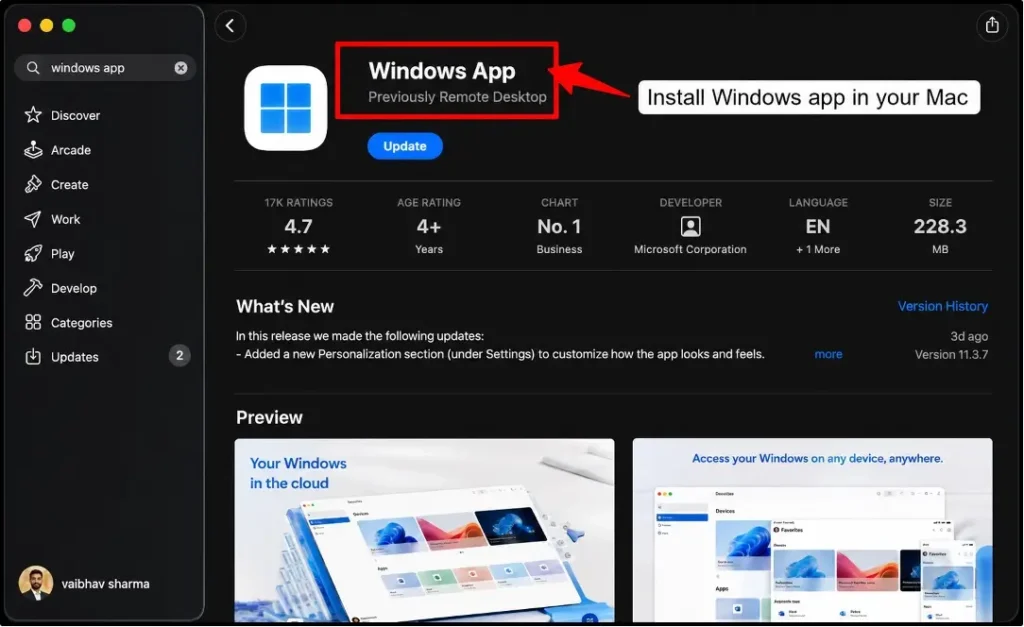
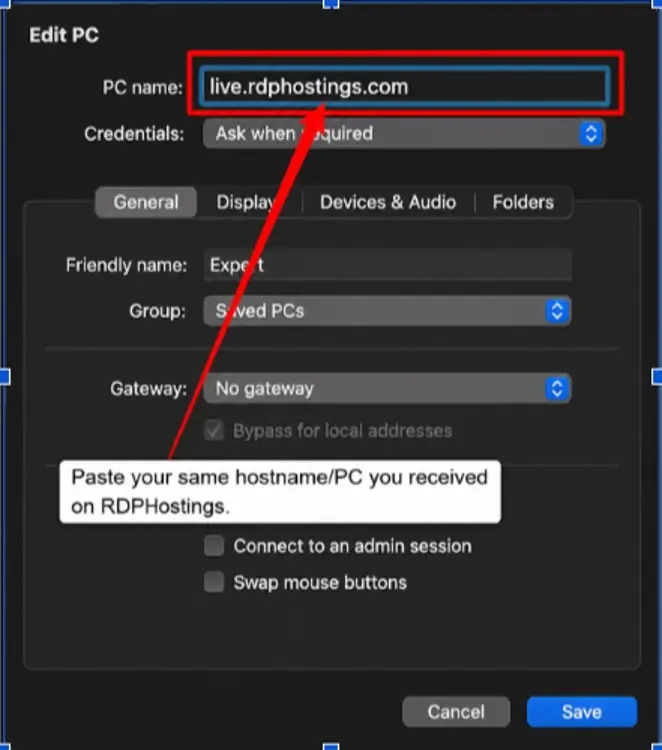
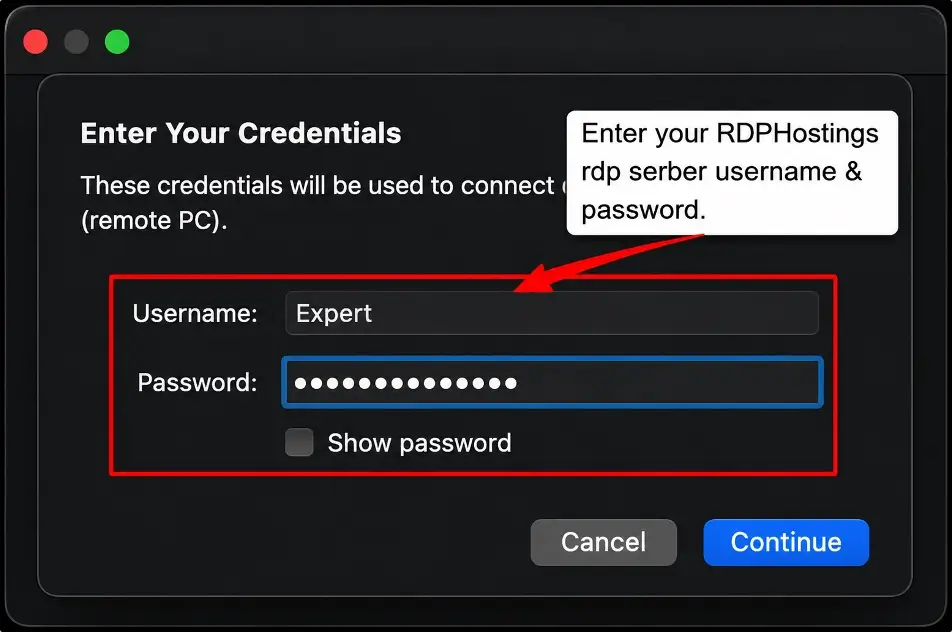
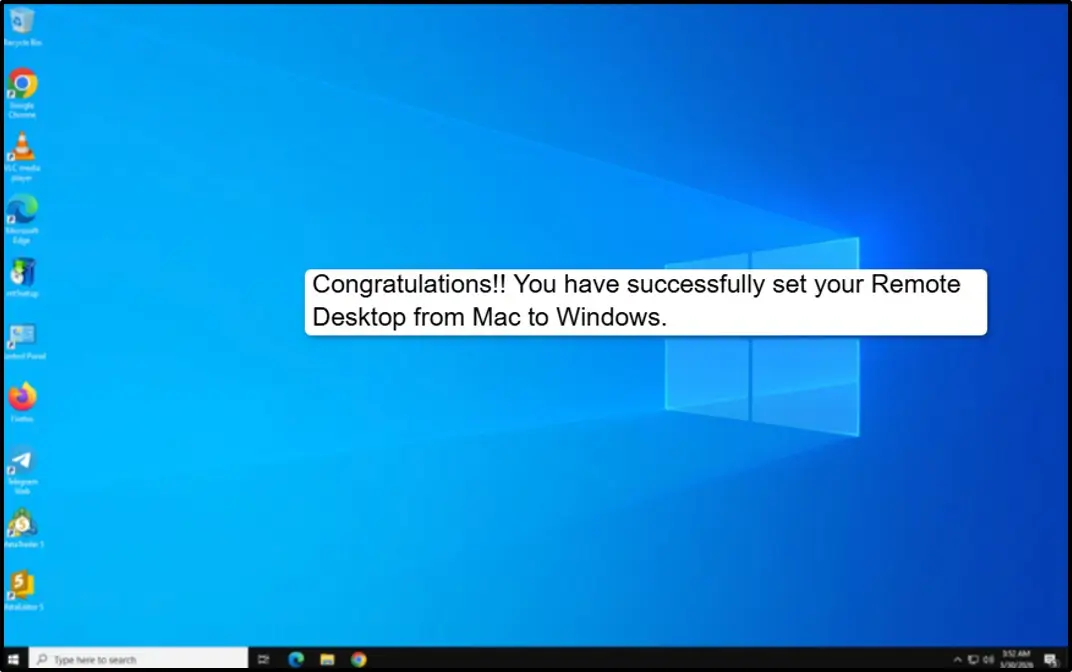
You are in. Your Windows desktop will now appear in a window on your Mac, ready to use. Your Mac is now talking to a real Windows RDP server desktop, ready whenever you need it.
Note:
If you want a clearer and more visual explanation of the steps, you can refer to this video and easily set up your RDP from Mac to Windows
Fixing Common Connection Problems
Even with everything set up right, RDP connections can sometimes cause issues.
But don’t worry, because this happens to almost everyone at some point, and most fixes take just a minute. We have found some really common issues people have been facing during this process.
Let’s counter each one of them.
Getting a “Can’t verify the identity of this PC” warning?
This is totally normal, and it’s actually not an error. It simply means that your Mac is just being cautious. Just click “Continue”, and you will connect just fine.
Is the connection just not happening?
First, you should double-check that you have typed the IP address correctly; even one wrong digit will stop it. Also, make sure that your Mac PC is actually turned on. If it’s your own computer, check that Remote Desktop is switched on in Settings.
Getting an error in access credentials?
Just slow down and type it in again carefully. Autocorrect or any extra space by chance can easily mess things up more often than you can think. If you are using a rented server, it is worth confirming the login details directly with your provider.
Screen goes black right after connecting?
This is not something really big and serious; it is just a small display issue. You can disconnect and wait a few seconds, and then reconnect. If it keeps happening, then try lowering the display quality in your app settings.
Does everything feel slow or laggy?
That’s almost always your internet struggling to keep up. Close any extra apps that could be eating up your bandwidth in the background, turn down the display quality, and it will make a bigger difference than you can expect.
Cannot connect even though everything looks right?
If you are connecting to your own PC, your firewall is your culprit. Check that it is not blocking Remote Desktop and allow it manually if it is needed.
Tips:
If you run into any issues along the way, double-check your login credentials because that is where most connection issues come from.
Let me tell you honestly, once you get past the initial setup process, a remote desktop server will work amazingly and reliably for you.
Conclusion
See! Connecting your Mac OS to a Remote Windows system is not as difficult as it seems.
It’s just that you need the right step-by-step guidance for it, and once you have it, you can easily do it.
Once you have your remote desktop access information from your RDP provider, the setup actually takes just a few minutes with the free RDP service.
People are upgrading. They are buying MacBooks and devices that use macOS, but they miss the opportunity to use some software that runs only in a Windows OS. For that, we recommend that they sign up for an RDP server and connect their Mac to Windows using the RDP login info.
You don’t need to buy a separate Windows PC. This simple Remote Desktop connection from Mac to Windows can solve your problem.
Once it’s set up, it just works reliably whenever you need it.
FAQs:
Is there a free Remote Desktop for Mac?
Yes, RDPHosting offers a free remote desktop for Mac. You simply sign up with your details and your free RDP gets activated instantly. You get a full Windows environment with its own IP address. It runs 24/7 and is accessible from your Mac screen
What are the disadvantages of using Remote Desktop?
- Remote Desktop does have certain other aspects which you should know
- It needs a stable internet connection because slow internet makes the session laggy.
- It also only works if your remote computer is powered on and reachable; if that machine goes offline, you lose your access until it’s back up.
- If you are connecting to a shared server, performance can easily drop.
What is the difference between RDS and RDP?
RDS (Remote Desktop Services) is the broader Windows server feature that uses RDP to let multiple users connect to shared applications at once, and RDP (Remote Desktop Protocol) is the actual technology that lets you connect to and control another computer. You can think of RDP as the connection method, and RDS as the larger system built around it.
What is the purpose of RDP?
The purpose of RDP is to let you control a computer from a different location, as if you were sitting right in front of it. It is commonly used to run software that only works on a particular OS and manage servers remotely. RDP also helps you access work files from anywhere.
How can I get free RDP?
You can easily get a free RDP. You can simply search and find any provider that fits best as per your needs, and just register yourself. You can choose their basic plans, which give you a free RDP server.
💡 Most Loved Article!