
Have you ever desperately needed to work on Linux, but you have a Windows PC?
This is the problem many developers face: you have a PC but want to run cross-platform code and test web applications in a Linux environment.
That’s when a remote desktop from Windows to Linux becomes valuable for you, as it lets you connect to a Linux server from your Windows screen and run your development work seamlessly.
But setting up a Linux RDP manually is very technical; it requires a lot of coding, connecting to a Linux server, and dealing with various errors. Nothing worked for me at first.
Then I found a free RDP server that changed everything. Here, you can easily connect from your Windows server to Linux using just three things: an IP address, username, and password.
I did the setup several times, and I helped dozens of people solve this same issue. This guide is also for you to show you the same simple steps, and by the end you’ll have your Linux working for you.
Let’s begin.
What is Linux Remote Desktop (RDP)?
Linux RDP is a remote desktop solution that lets you access and control a Linux server from a remote computer over the internet. You can open the desktop and run your applications directly from your Windows PC, just like you’re sitting in front of your Linux system.
Using a Linux RDP, you can test web applications easily in a Linux environment while working from your Windows server. You get full access to all your Linux tools and files remotely. Linux RDP even allows you to bypass vulnerable networks and keep your work safe beyond development.
By connecting to a secure Linux server, you can isolate sensitive work from potentially compromised local networks.
Imagine you have bots already installed on your Linux server; these bots can run 24/7 continuous tasks in the background, even when your Windows PC is turned off.
You can use your Linux software without even installing it on Windows; you just get access to powerful Linux servers from anywhere in the world.
Requirements for setting up Linux RDP
Before starting your setup, you need to have certain important requirements for the process. It takes you only a few minutes once you have these things ready.
Below are some of the major requirements you’ll need or should know before you even start the setup process.
| Requirement | Details |
|---|---|
| RDP Server Installed | Install a cheap RDP server to allow remote desktop connections. |
| User Account/Password | A valid username and password for remote login. |
| Open Port (3389) | Enable TCP port 3389 to be open in the firewall and accessible over the internet. |
| Remote Desktop client | Use Microsoft Remote Desktop (Windows/macOS). |
| Server IP address or hostname | Server IP address or hostname to connect. |
| Internet Connection | Both your client and Linux machine should have a reliable internet or local network connection. |
If you are using a free RDP server, most of these specs are already set up for you. The RDP server is installed with an open port, and everything is configured and ready to go. You just need your username and password.
When you have all these basics ready, connecting to your Linux RDP from Windows is just a few clicks away.
Let’s move forward and connect your Linux to Windows.
Get a Ready-to-Use Linux RDP Server
I needed a computer with Linux OS to test applications or run my bots 24/7, but manual RDP configurations are too complex and technical. So after trying many options available, I found one.
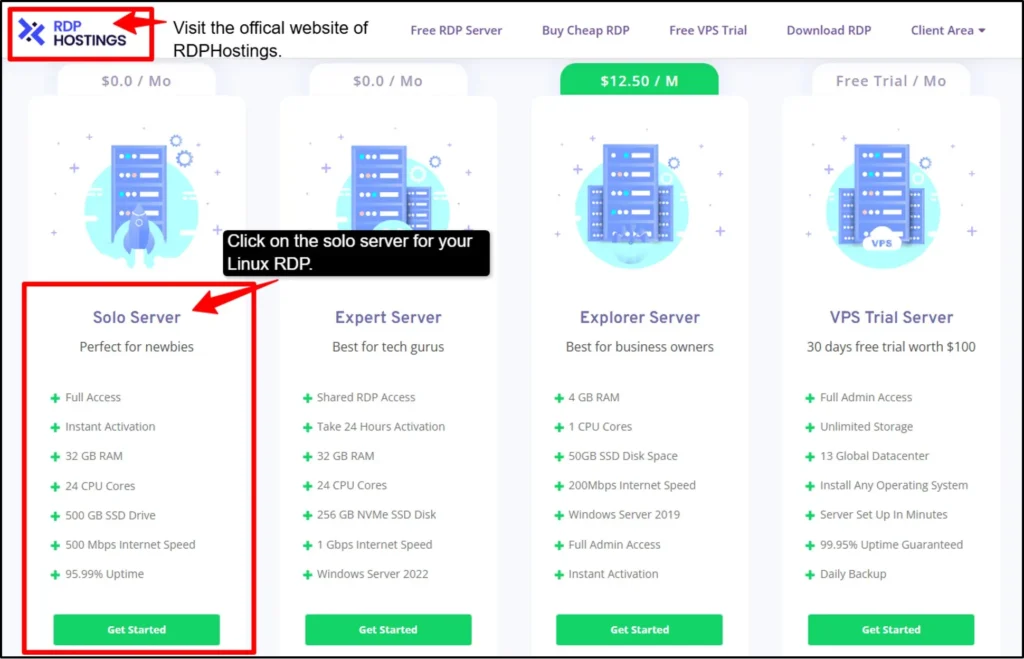
I found one provider, RDPHostings, which worked perfectly. They offer you both Windows and Linux servers pre-configured and ready to use. You really don’t need anything technical to set up.
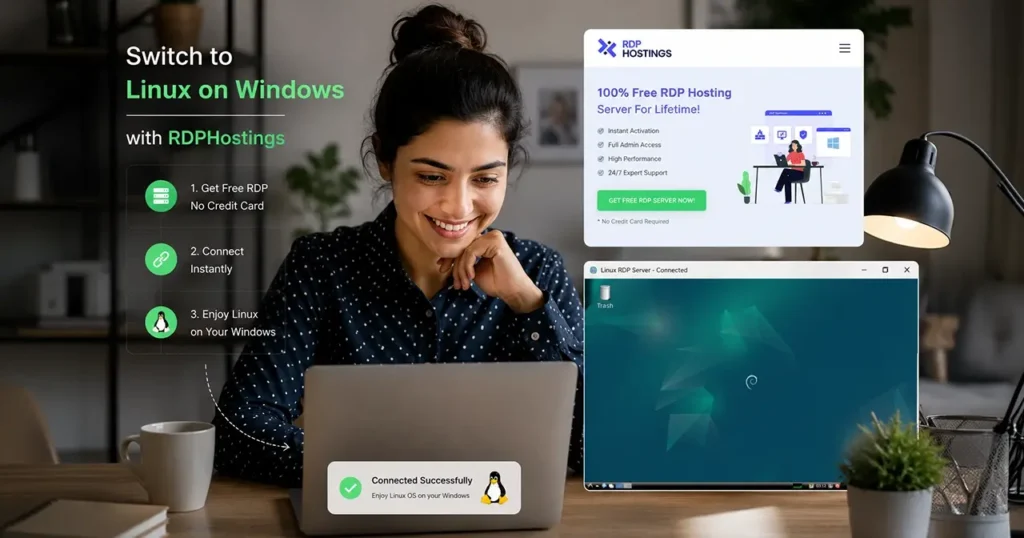
You can easily rent a Linux RDP server with one-click setup and get your login credentials (IP, username & password) instantly.
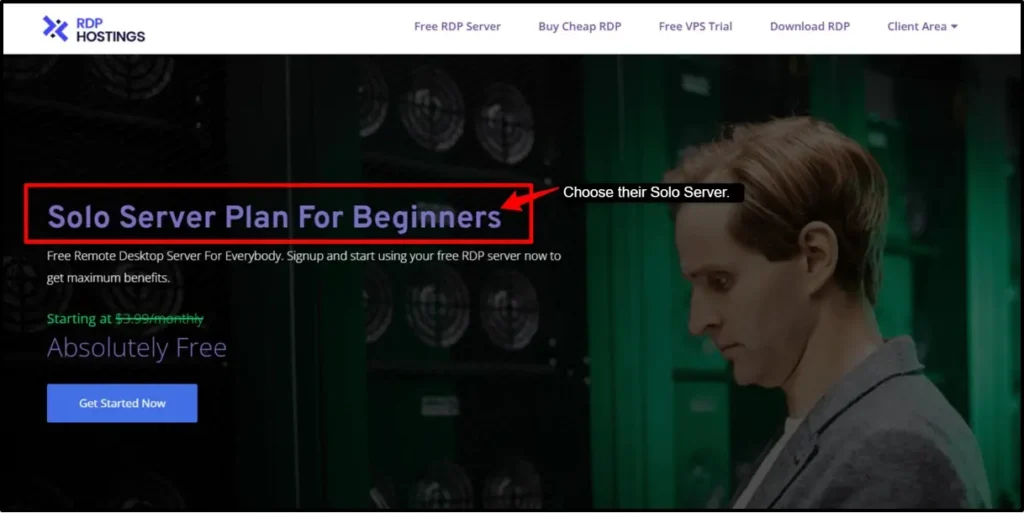
I used their solo server option (which offers a Linux RDP server), as it gave me exactly what I needed, and you don’t even have to pay extra. It has a simple setup with one click, done within seconds.
The best part is that you can easily connect to this Linux RDP from your Windows computer instantly. We’ve given very easy and navigable steps, so by the end of it, you’ll have your Linux RDP ready to use.
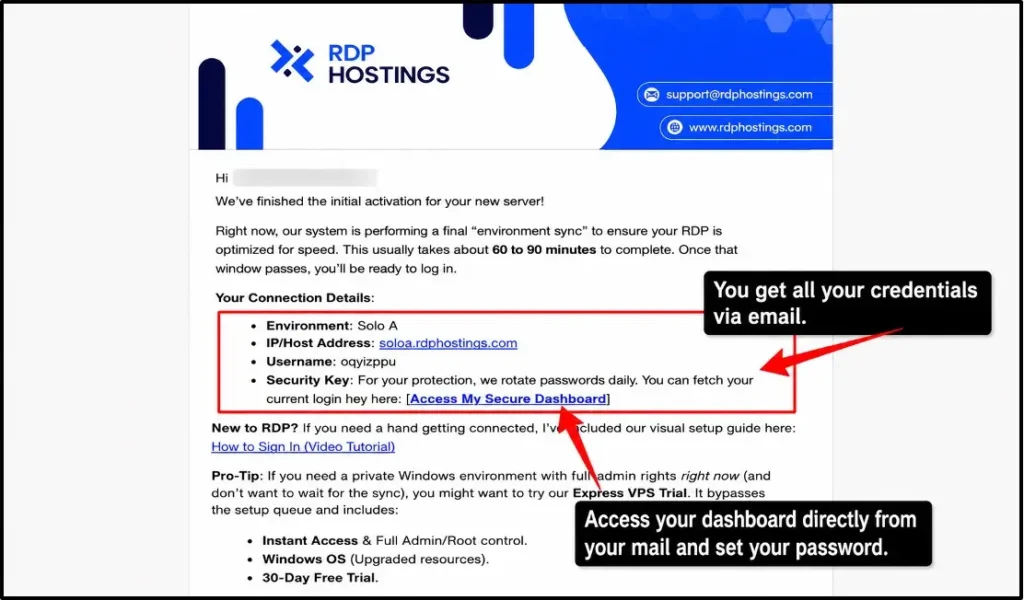
Note
The first time you connect, Windows might ask about security. Just click “Yes” to continue. This is normal and safe.
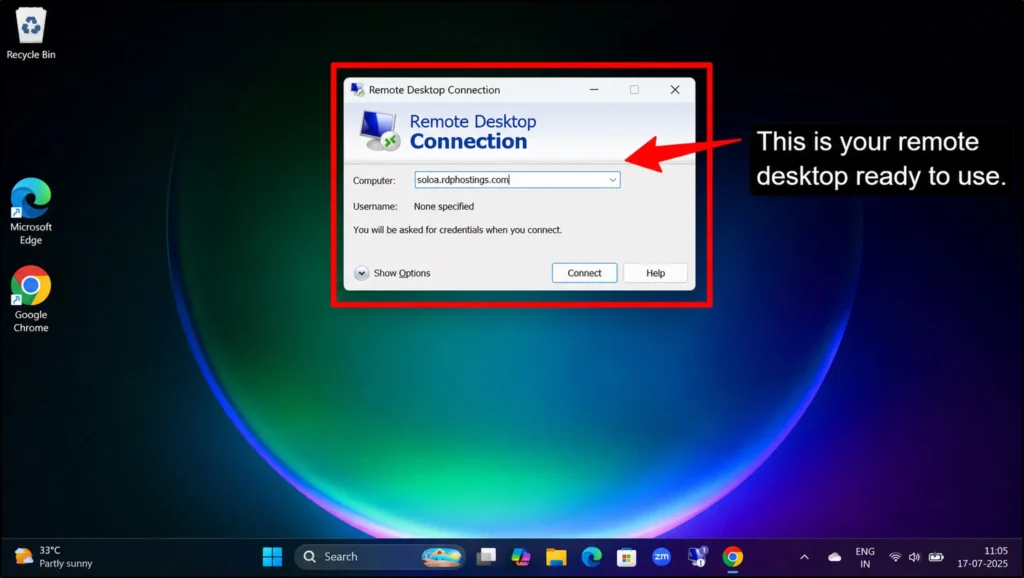
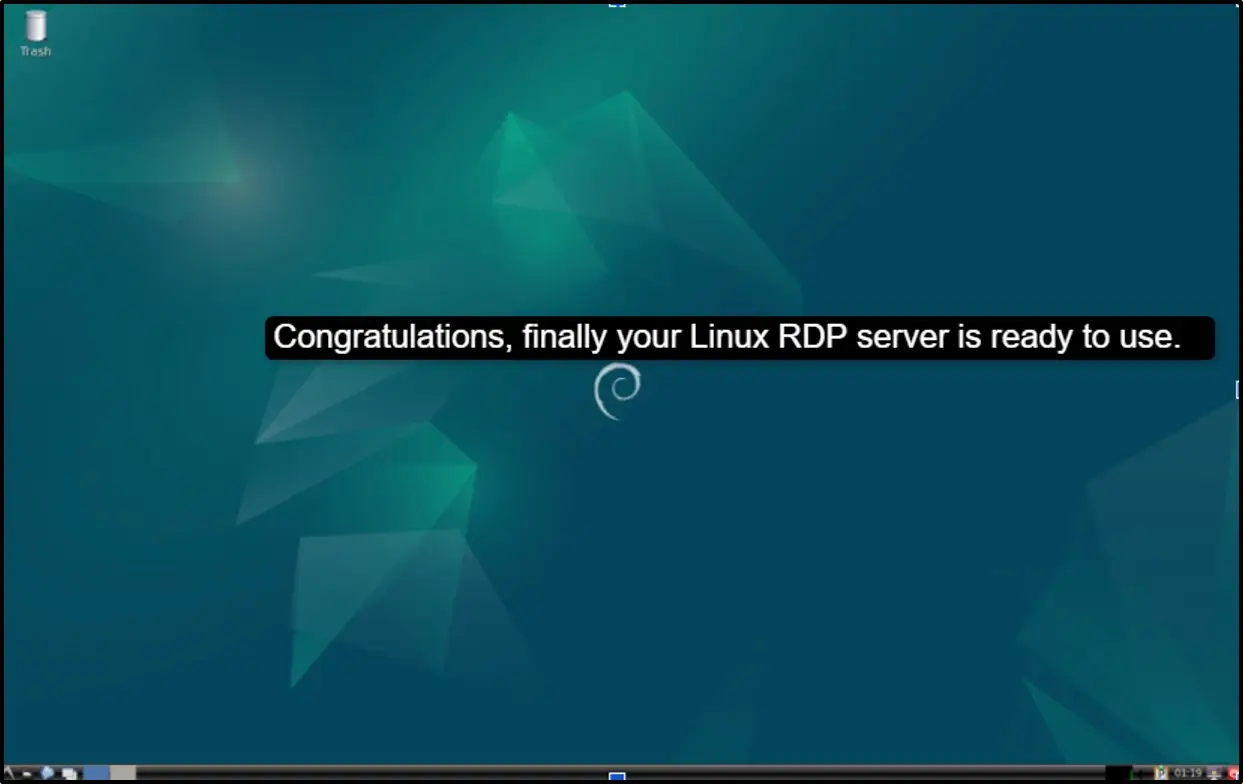
Once you complete all these steps, you’re done. Now use your Linux software. Your Linux server is now active. You can open any Linux application you need and use it just like you’re sitting at your Linux computer.
Your remote Linux server is active:
You need zero extra technical knowledge for this.
By using just a few clicks from any provider you choose for your Linux, you can get it running straight on your Windows.
Note:
If you want a clearer and more visual explanation of the steps or you want to understand the complete server buying process, you can refer to this video and easily set up your Linux RDP from Windows.
Common RDP Setup Errors and How to Fix Them
Usually, there are common errors that you face while setting up your Linux RDP.
It needs a lot more of your focus, though the setup is simple when you use a free RDP server; still, a small configuration mistake can even prevent successful remote access.
Let’s know about the most common errors and their fixes so you can try to troubleshoot issues quickly and keep your remote desktop running easily.
RDP service is not running.
Port 3389 is blocked
Authentication failure
Black screen after login
Connection refused
Slow or Laggy remote desktop
Most of the Linux RDP setup issues can be resolved with a few configuration changes.
By identifying the root cause and applying the appropriate fix, you can easily have a stable and reliable remote desktop experience with minimal downtime.
What Can You Do With a Linux Remote Desktop?
A Linux remote desktop does much more than just providing you with remote access to a computer. It lets you use a Linux system from anywhere, making it easier for you to manage servers and develop your applications, and you can even run your different business software.
Here are various major use cases for what you can really do with your Linux remote desktop.
Example:
You are on vacation, but your company needs a security update. Connect remotely, install the patch, and verify everything is working. It can be done in 10 minutes.
If you are a developer or system administrator, or you belong to an IT team, a Linux remote desktop provides the flexibility to work securely from anywhere.
It centralizes your Linux environment by improving your productivity and gives you full control over your system.
Conclusion
We have travelled from frustration to knowledge in this guide.
You learned how Linux RDP works, why it’s powerful, and exactly how you can set it up without facing any technical walls. Now you know running your Linux tools is very easy from your Windows computer.
All you require are the three important things: your login credentials; just connect them, and your Linux software will run on your Windows screen. You don’t need to be smart with your computer; you just need to follow the steps that I have mentioned.
So now go ahead and set it up today. It will take only a few minutes.
Your Linux is waiting for you.
FAQs:
Does RDP work from Windows to Linux?
Yes, absolutely, RDP works perfectly from Windows to Linux. You use the remote desktop connection technology on Windows, enter your Linux server’s login details, and you’re connected.
Is VNC better than RDP?
No, RDP is faster and more reliable for most of the users. It’s good for you Windows-to-Windows connections, high-performance experiences, and Linux access. VNC is good for cross-platform access and offers a quick setup for tech support, but it can get slower at times, but RDP is a better choice, especially for beginners.
Can I use Linux remote desktop on a Mac?
Yes, you can. You just need to download an RDP client for Mac. Then you can follow the same steps, like entering your Linux credentials, and that’s it; it just works like the Windows one.
What is the difference between RDP and XRDP?
XRDP is actually the RDP server software that runs on Linux. When you set up an RDP on Linux, you are installing XRDP, as they work together. You don’t need to worry about the difference; just know that XRDP makes RDP work on Linux.
How to remote log in to a Mac?
Use Apple’s screen sharing (built-in) or download Microsoft Remote Desktop for Mac. Enter your Mac’s IP address and username. Same process as connecting to Linux; it’s very simple. There is a proper dedicated article for this one with all the necessary steps, so you can refer to it if you need it.
💡 Most Loved Article!







One Comment