I run a full PC straight from my phone almost every day and the setup just takes 30 seconds only. And believe me, you do not need any technical background to do the setup.
I guarantee you that in just one go you can connect to a remote desktop from your Android mobile or from your iOS cell phone.
You do not need to see any YouTube videos to learn how to connect to RDP on mobile. They are all useless. They only tell you how to login, but here in this guide, I’ll tell you everything, how to use RDP on Android and iPhone, step by step with proper screenshots, I’ll also do internet speed testing of RDP, ill show you the RDP server location (where your remote desktop is located), I’ll also do video streaming of a YT channel that is banned from my location.
This way you can completely learn how to use RDP on your mobile.
I will use a real free RDP server for the demo so you can follow along.
Let’s get you connected.
Before You Start: What You’re Gonna Need
Before we jump into the setup, let’s get a few basics ready. If you have these in hand, it’ll keep the whole process smooth and quick.
Your Setup Checklist is below:
VERY IMPORTANT:
First of all, you need a working RDP connection (now, it can be either your own PC with Remote Desktop enabled or it can be an RDP or a Windows VPS server from a reliable RDP provider)
Before I start the setup, here are the free RDP login details I have with me.
I took them from RDPHostings, a 100% free RDP server provider. They gave me a free RDP server (an Expert Plan) that I will connect to using both my Android phone and my iPhone mobile.
The process is really easy.
You simply register an account with them and the RDPHostings team sends the free RDP server credentials to your email.
This usually lands in your inbox (Please check the Spam as well) within 10 minutes of signing up.
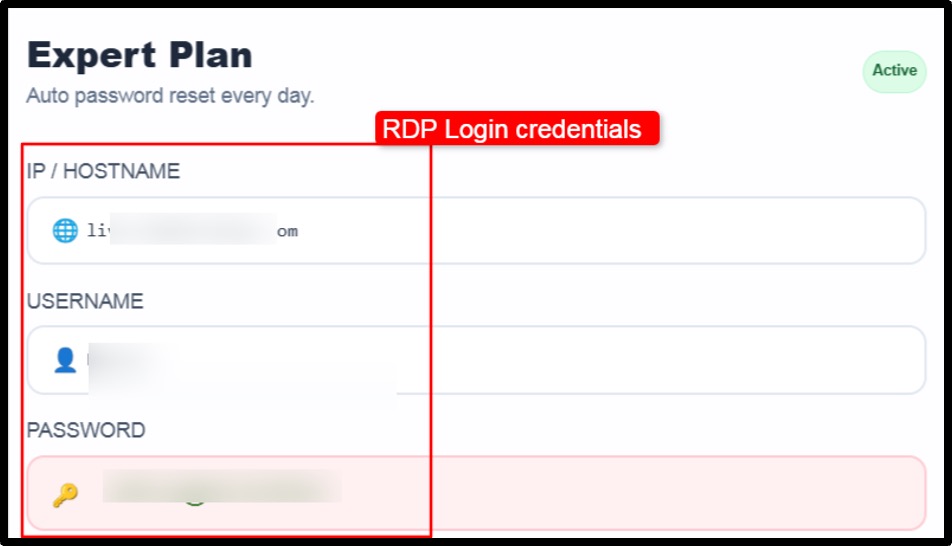
Now, as you get the RDP login credentials, please take a piece of paper and note the IP / Hostname, Username and Password down properly. These are the only things you need to enter to use the RDP server on your mobile.
| Please Note: Copy and paste the password straight from the email so you do not mistype it. |
How to Use RDP on Android (Step-by-Step)
Android makes the setup process very simple. You just need to download an app and your job is done.
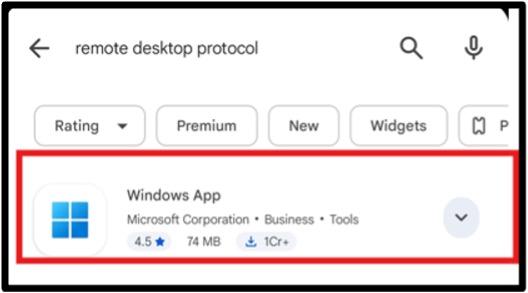
The official app that you need to use here was earlier called Microsoft Remote Desktop, and it is now called Windows App.
We will use it to connect to the RDP server.
Here are all the steps from starting:
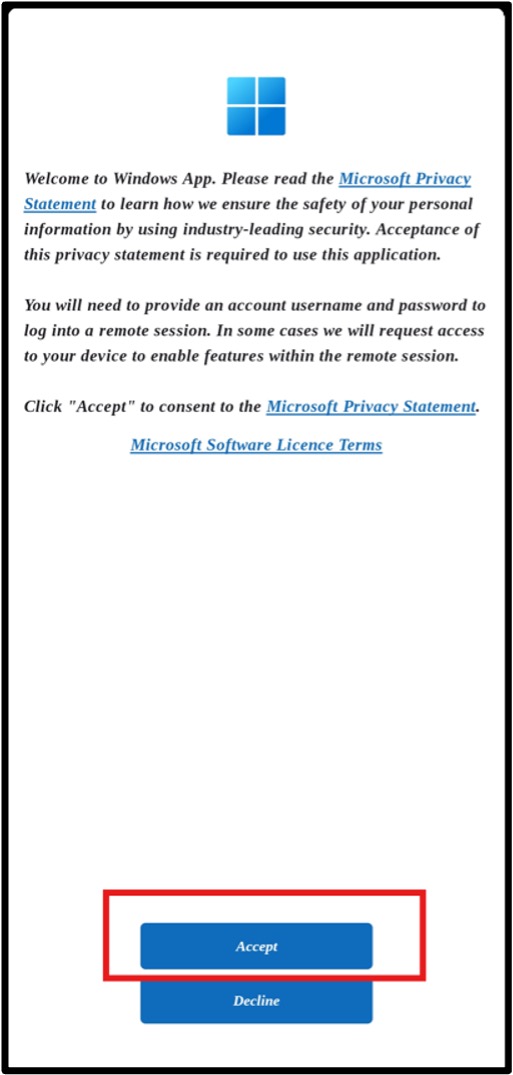
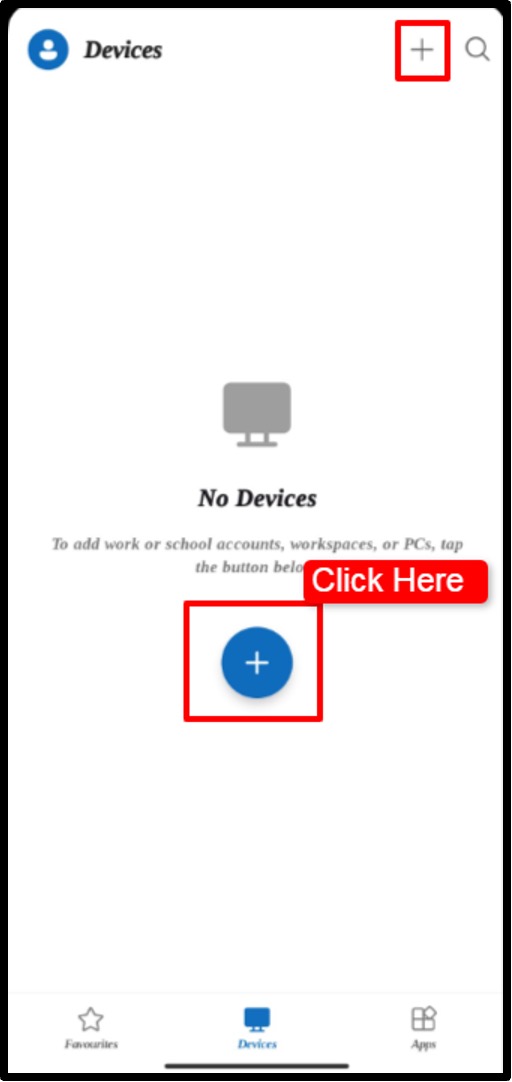
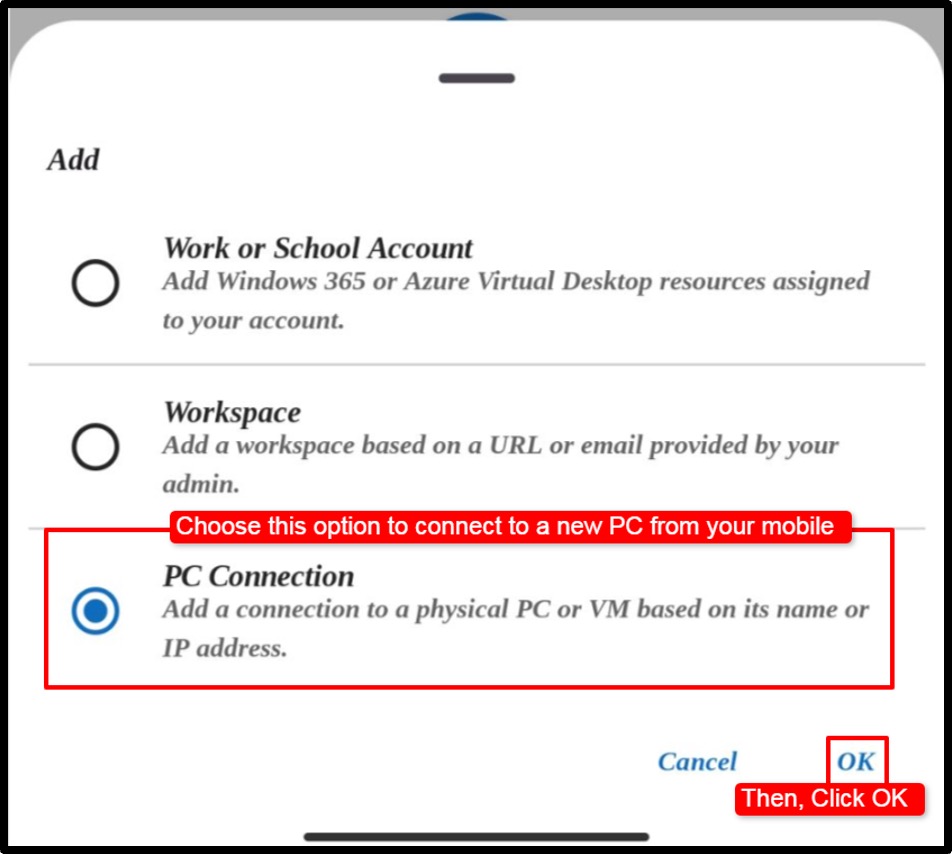
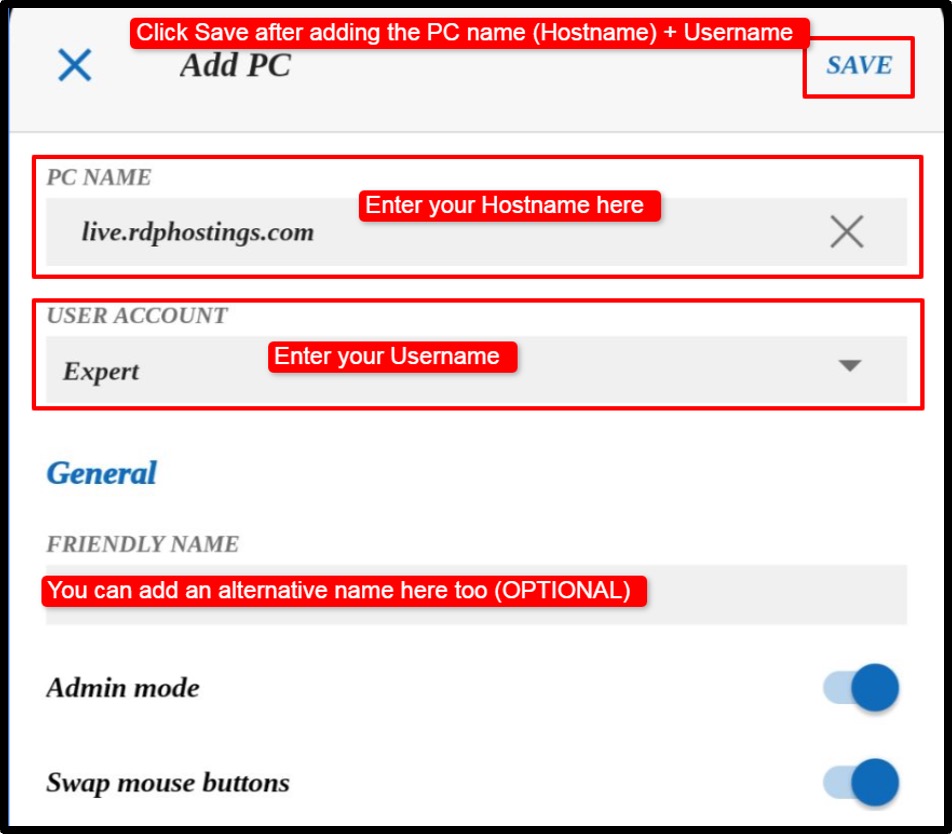
Please Note:
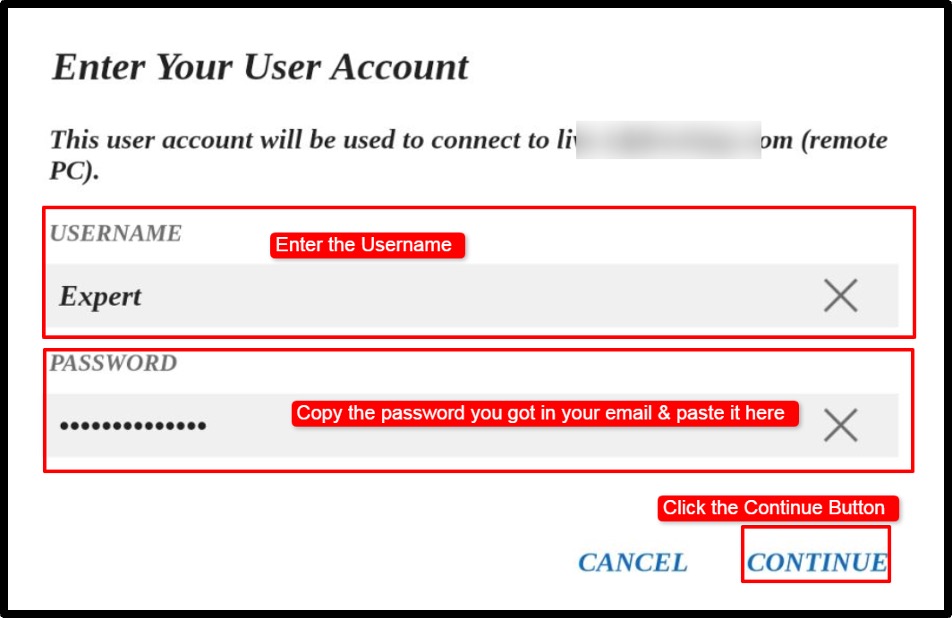
When you click the drop down button of the User Account, you get an interface like this shown below >> Here you only have to enter your remote PC login credentials (your username and password) just the way told below >> Click the Continue button.
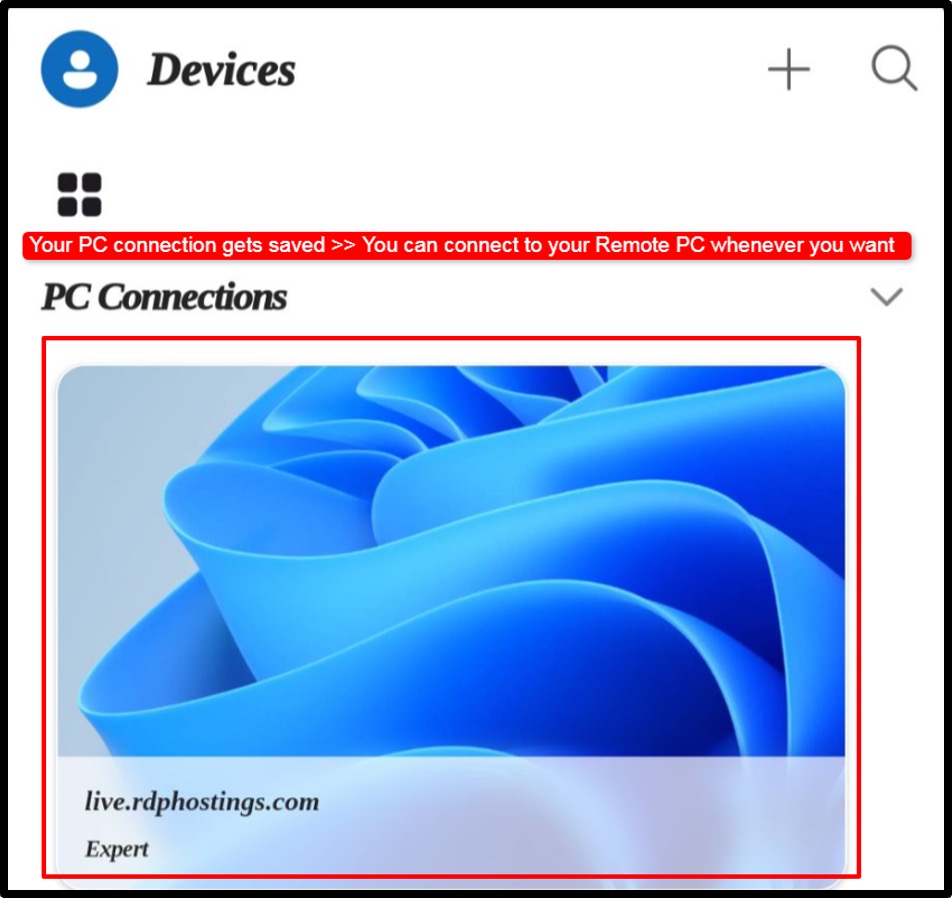
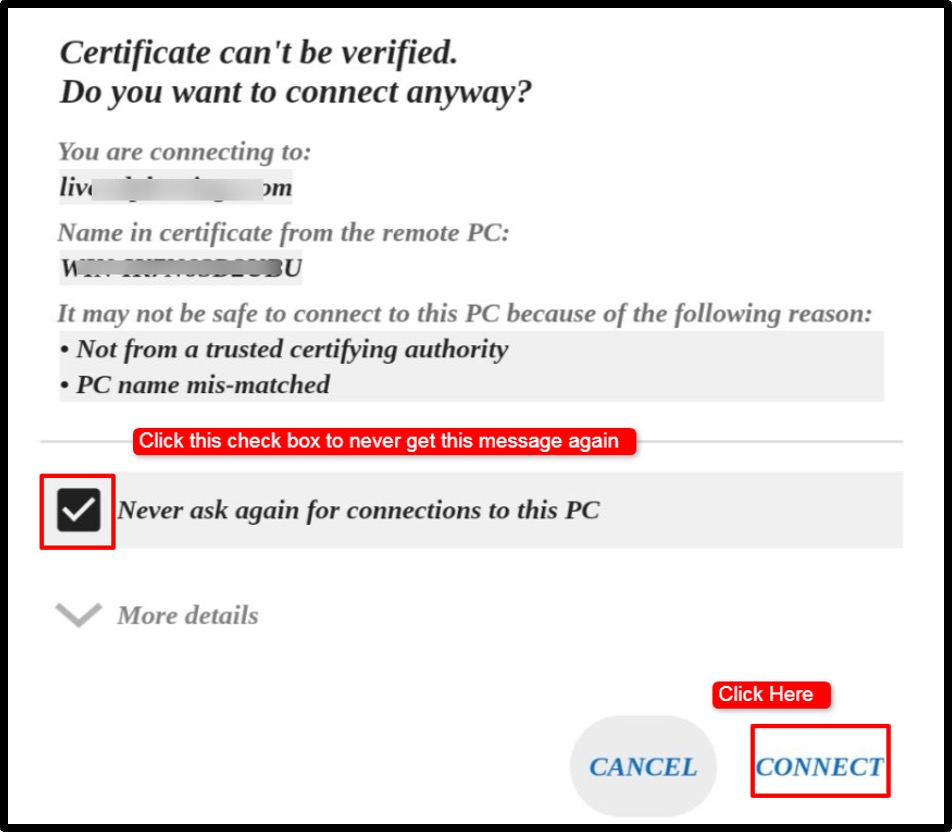
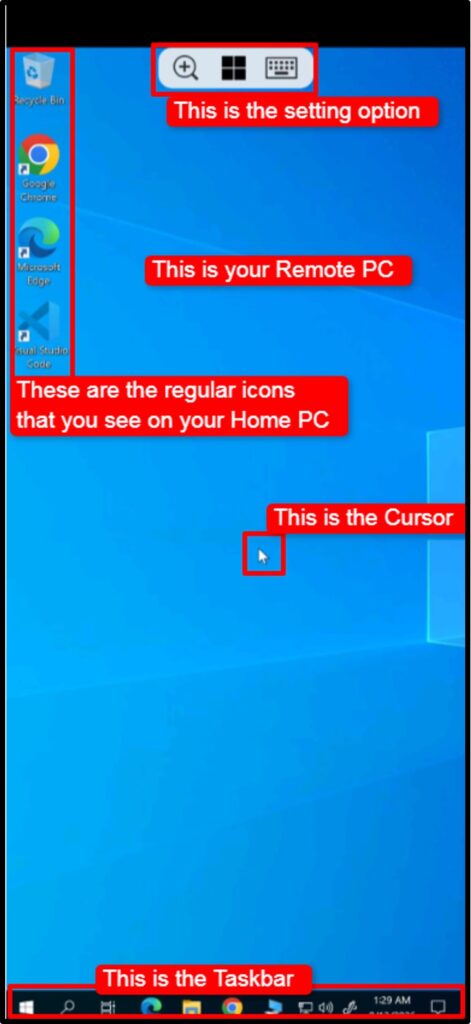
We’ve connected to the remote PC successfully. Now let us test the RDP server and see its server resources. I will test the location and also test the connection speed of the remote PC. I’ll also see if a YT channel that is banned in my location is accessible on the remote PC or not.
Let’s test it now!
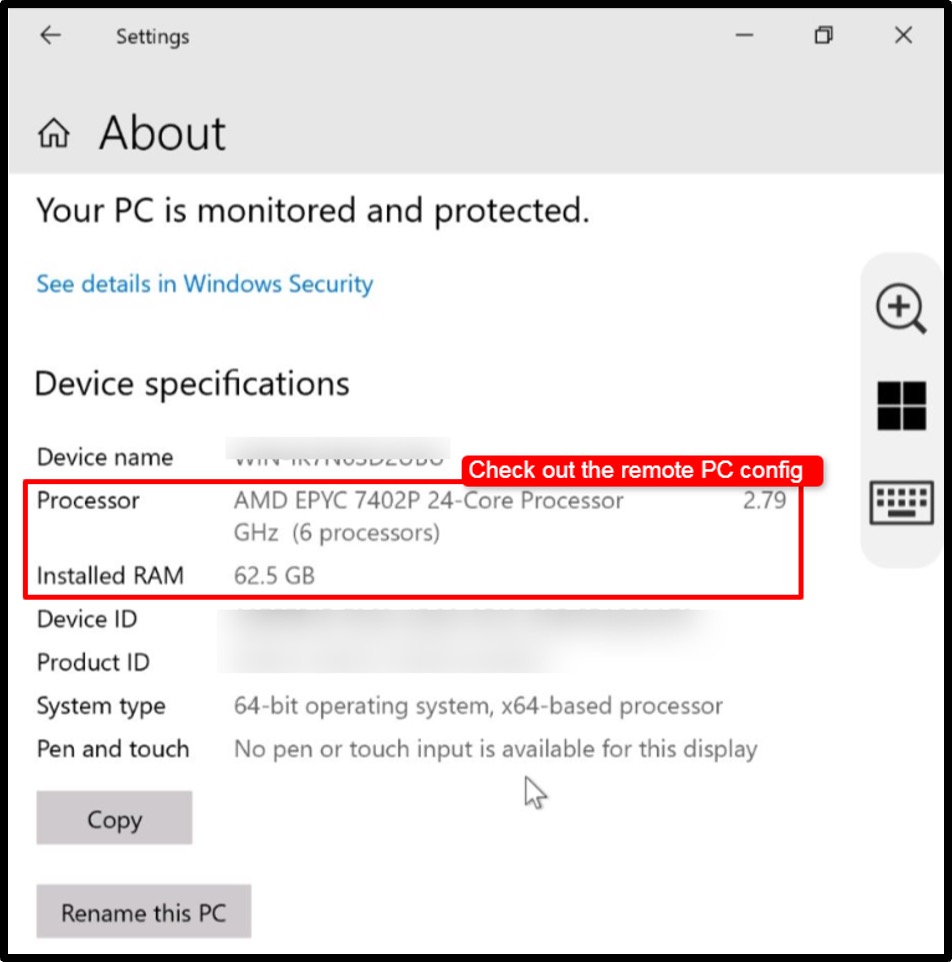
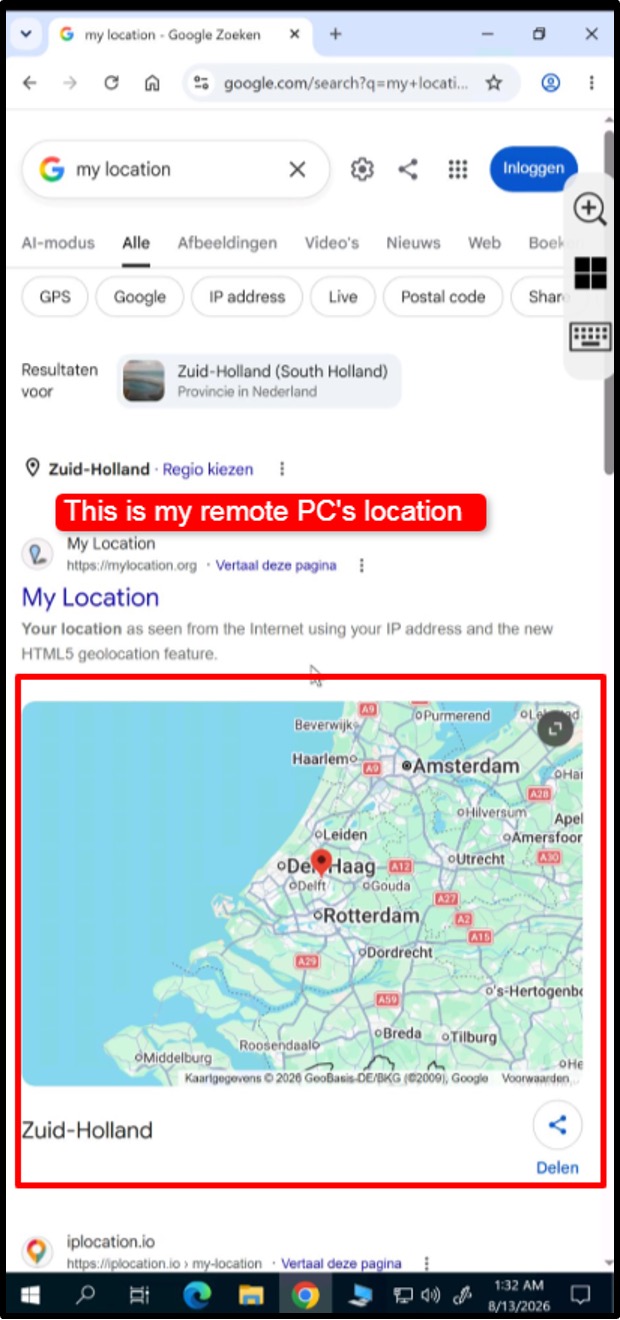
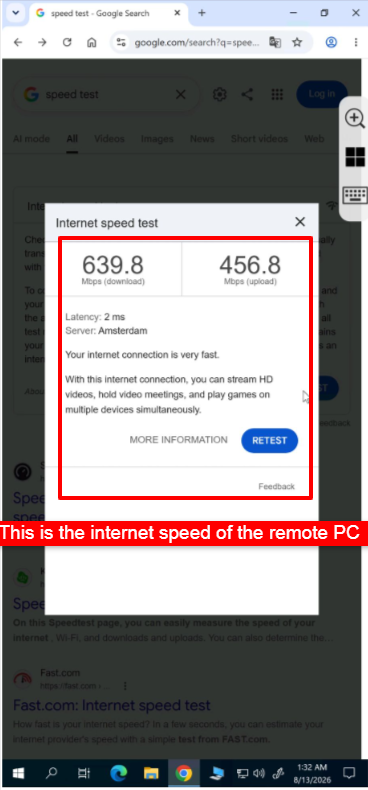
This means that if you’re an SEO analyst or part of a research team, you can use an RDP server to access websites that are restricted from your location. This is possible because your browsing activity goes through the RDP server’s public IP address, which belongs to the server’s location.
But, some websites may still block access based on other factors, such as the server’s IP reputation or their own security policies.
So, by now, I’ve shown you how to use RDP on Android. I’ve also tested the RDP server and shown you how it performs in real life workflow.
Now, what about those who use iPhone? For them, I’ve arranged another step by step guide to show how to use RDP on an iPhone.
A small disclaimer before we start: The steps are almost the same in iPhone and in Android and it is the same remote PC that I will connect to. That is why I will only show you the steps on how to connect to the RDP in the iPhone and not do the testing again.
How to Use RDP on iPhone (Step-by-Step)
The remote PC connection using the iPhone is almost identical. Apple uses the same Windows App from Microsoft, so the buttons and screens look nearly the same as Android.
Here is how to do it on iOS.
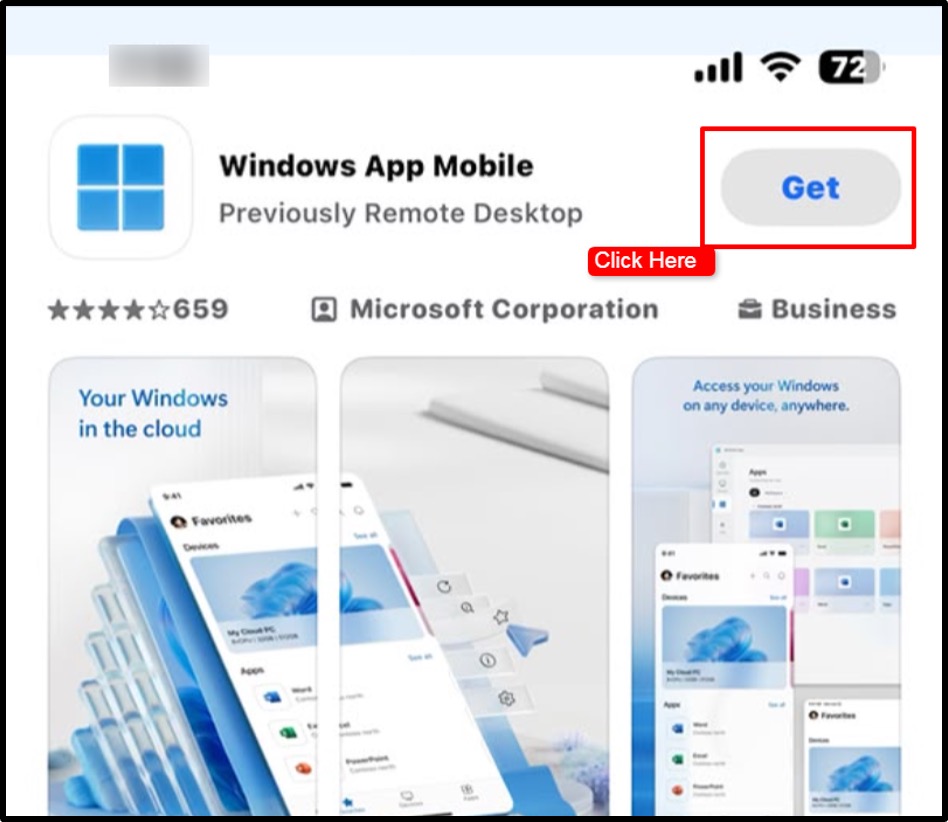
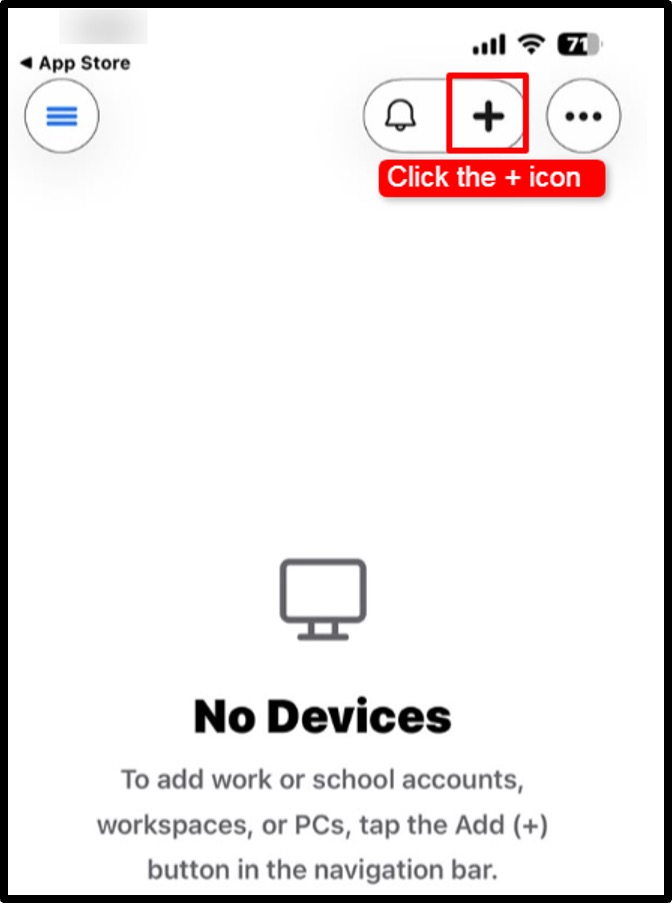
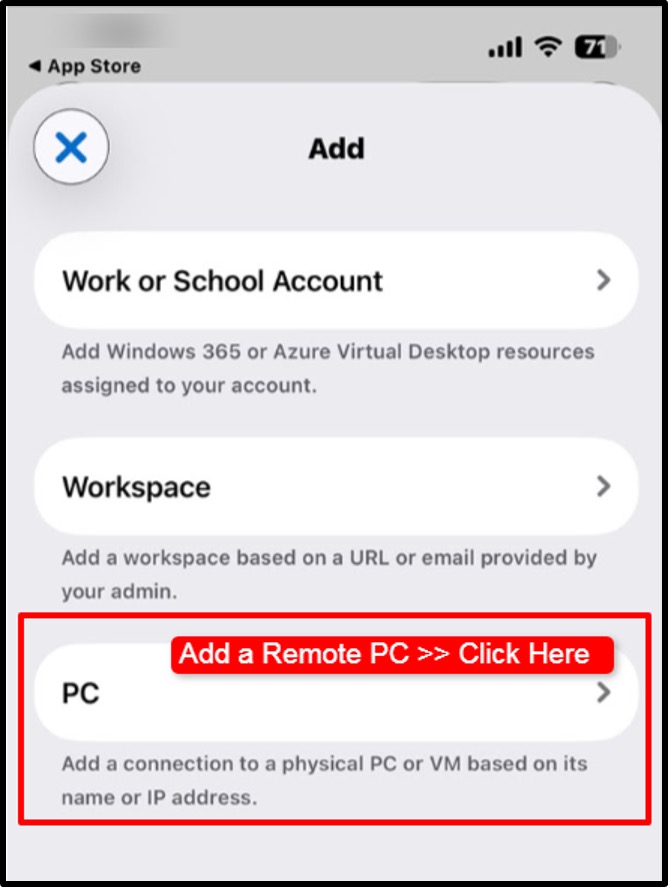
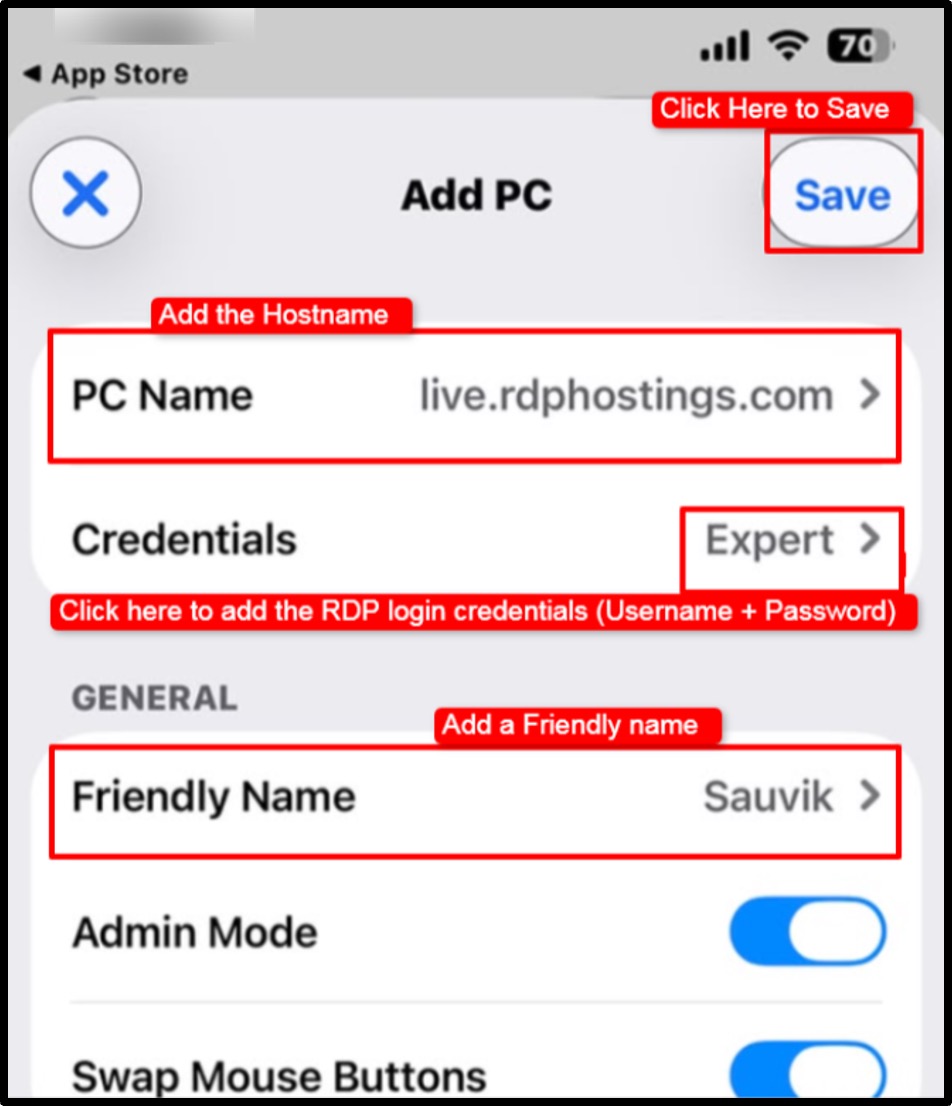
Please Note:
As you click the Credentials tab >> You get a pop up on the screen where you have to enter the Username and the password (Entering password is optional, but please enter it to avoid any interruptions in the connection later)
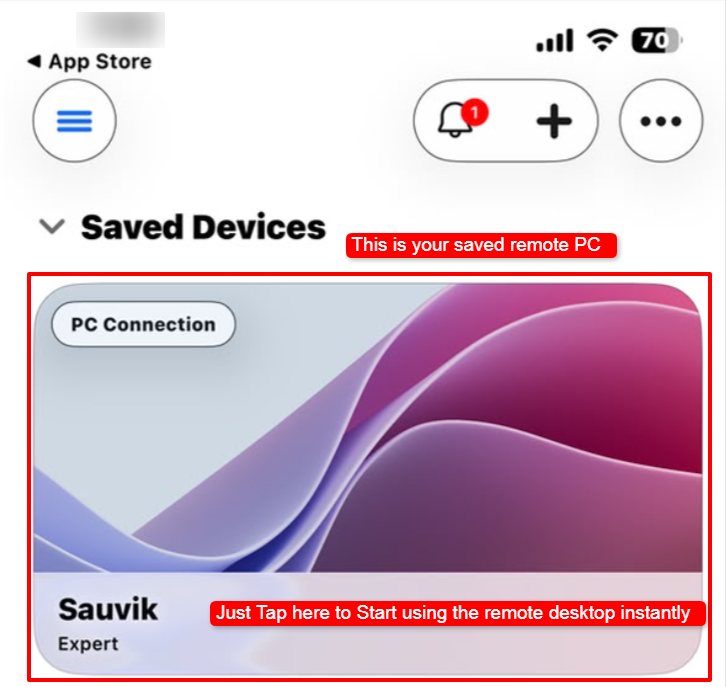
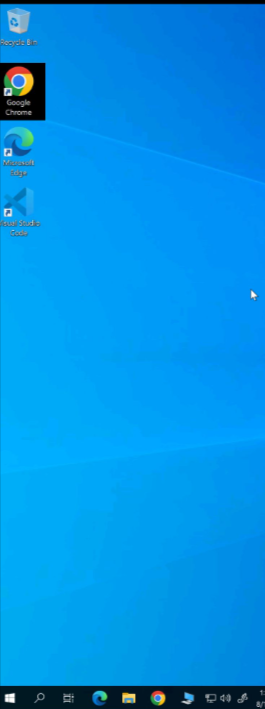
The controls work the same as on Android.
Pro Tip: An iPad with a keyboard case runs beautifully. Same Windows App, same steps, just a bigger screen to work on.
Common Mobile RDP Issues and Quick Fixes
Now, during my mobile RDP connection sessions, I’ve gone through a lot of issues, which I really want to share with you people and along with that I’ll also tell you a quick fix for each so that if you are in the same situation, you can easily tackle the problem and do not get interrupted at all.
Problem1) RDP login credentials are not working
Problem2) Black screen is seen after connecting.
Problem3) Cannot connect using the PC name.
Problem4) Connection keeps dropping on mobile data.
Problem5) CredSSP authentication error.
Problem6) Couldn’t connect or a timeout appears.
Problem7) Certificate warning shows every time.
These are the list of problems that I faced during my connection sessions. However, it was really very easy to resolve the problem also.
Choosing the Right RDP Provider (Free vs Paid)
You have two options here.
A free RDP server is perfect for learning, testing (the way I did above in the steps) and short tasks (like doing office work or saving a school project in the local disk).
A paid RDP or Windows VPS is what you want once you need real power, uptime, and support you can count on.
Free RDP servers are really for a first try, but they come with limits on time and stability. Paid servers cost a little but give you dedicated resources and help when something breaks.
Here is a simple side by side.
Free RDP for Testing: RDPHostings
RDPHostings gives you a free RDP server after a quick signup, with credentials mailed to you in about 10 minutes. It is a great way to test this exact setup at no cost.
Paid RDP for Reliable, Long-Term Use: QloudRDP & Kamatera
For daily work, Qloudrdp offers affordable, ready-to-use RDP plans and Kamatera gives you flexible, high-performance cloud servers you can scale anytime.
My advice is simple. Start with a free RDP login to learn the setup then move to a paid plan the moment you rely on the server for real tasks.
| Option | Best For | Key Features |
|---|---|---|
| RDPHostings (Free) | Testing and learning | Free server, email credentials in about 10 minutes, no cost |
| Qloudrdp (Paid) | Reliable daily use | Ready-made RDP plans, stable uptime, easy setup |
| Kamatera (Paid) | Power and scaling | High-performance cloud, flexible specs, pay as you grow |
Conclusion – How to Use RDP on Android and iPhone
I covered the full mobile RDP setup on Android and iPhone.
I showed you how I used the free RDP login credentials to connect to the remote PC and also ran real tests to see the performance level of the free RDP plan. I faced some problems too but they were properly resolved in no time at all.
Now you can connect to your RDP server from your phone in minutes.
💡 Most Loved Article!