You must have heard about n8n, a powerful workflow automation tool that promises to connect your apps, automate repetitive tasks, and save you hours every week.
But then you face your problem. How do you actually get this thing running? You try to set it up, but things get confusing very fast. The instructions feel technical, and the steps are unclear.
We are going to help you out. How to install n8n on Docker is actually much simpler than it looks. Docker is just a tool that helps you run apps like n8n on your computer without complicated setups. Think of it like a box that holds everything n8n needs to work perfectly.
Here in this guide, we will guide you through every process; we are going to go step by step, and no steps will be missed.
Either you have never used n8n on Docker, or you are a developer who is facing real issues and just needs a clear guide to follow; we’ve got everything covered.
What is n8n?
N8n is a free tool that helps you connect your favourite apps and automate boring, repetitive tasks without even writing any code.
N8n is not like other automation tools because you stay in control of your data, and it can be hosted on your own computer or server, which simply means no one else has access to your information.
For example, imagine every time you get a new email, n8n automatically saves the attachment to Google Drive and sends you a Slack message.
All of this happens on its own, without you lifting a finger. It is like having a digital assistant that works 24/7 in the background. It has a simple drag-and-drop builder where you can visually connect your apps and set up workflows in minutes.
Note
In short, Docker makes the entire n8n experience smoother and safer. You spend less time dealing with technical problems and build powerful automation that works for you.
Why Install n8n Using Docker?
Docker is one of the most popular and recommended ways to install n8n, and for good reasons. It is a software platform that packages your applications into standardized units called containers.
It removes the stress of complicated setups and keeps everything running smoothly. Here is why Docker is the best way to get your n8n up and running:
Prerequisites for Installing n8n on Docker
Before we start the installation, make sure you have everything listed below ready on your computer.
| Requirement | Minimum | Recommended Version |
|---|---|---|
| Operating System | Windows 10, macOS 10.15, Ubuntu 18.04 | Windows 11, macOS 13+, Ubuntu 22.04 |
| Docker | 20.10+ | 24.0+ |
| Docker Compose | 1.29+ | 2.20+ |
| Resources | 1 vCPU, 2 GB RAM & 10-20 GB SSD storage. | 2+ vCPUs, 4+ GB RAM & 30+ GB SSD storage. |
| Internet Connection | Basic broadband | High-speed broadband |
| Open Port | 5678 | 5678 |
Once you have all these requirements, you are completely ready to move forward. Docker and Docker Compose are both free to download and install in just a few minutes.
Now, let’s jump to the fun part of installing n8n on Docker step by step.
Method 1: Install n8n Using Docker Run Command
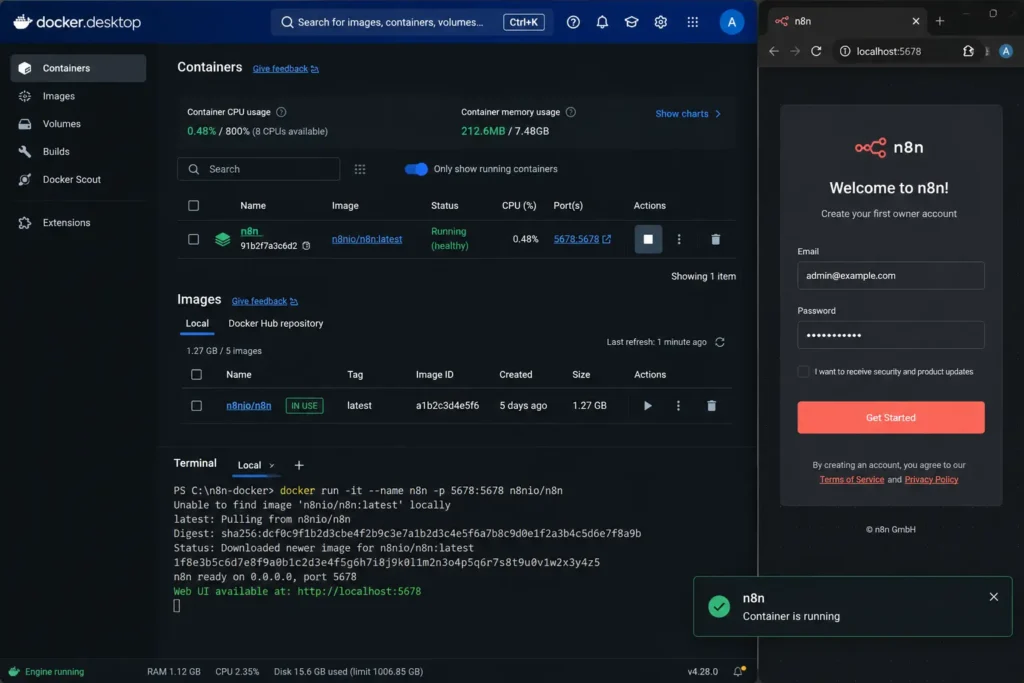
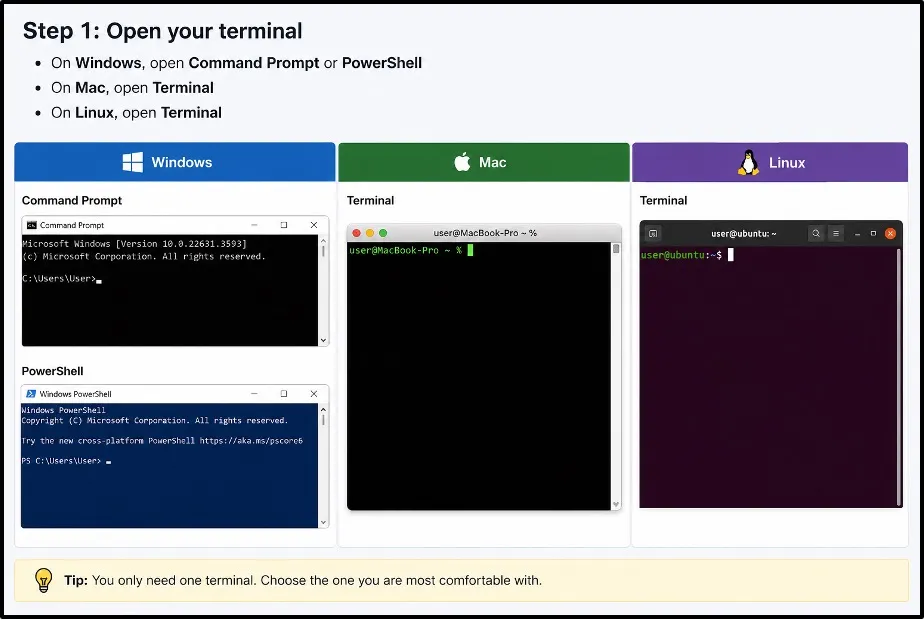
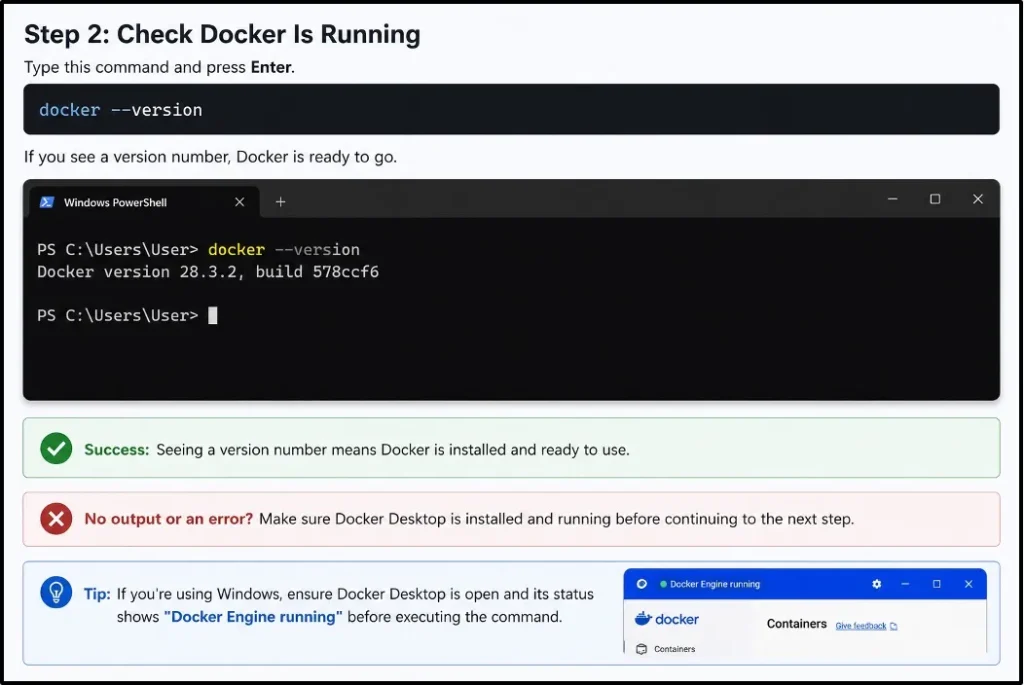
The fastest way to get n8n running is with a single Docker command. Just follow these simple steps in order, and you will have n8n live in minutes.
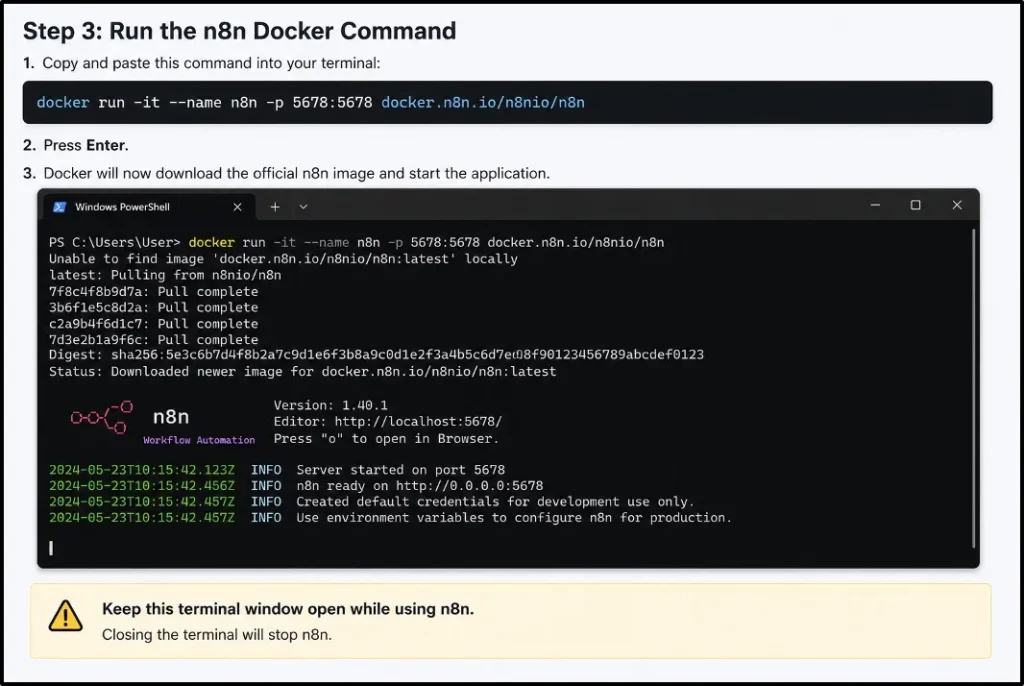
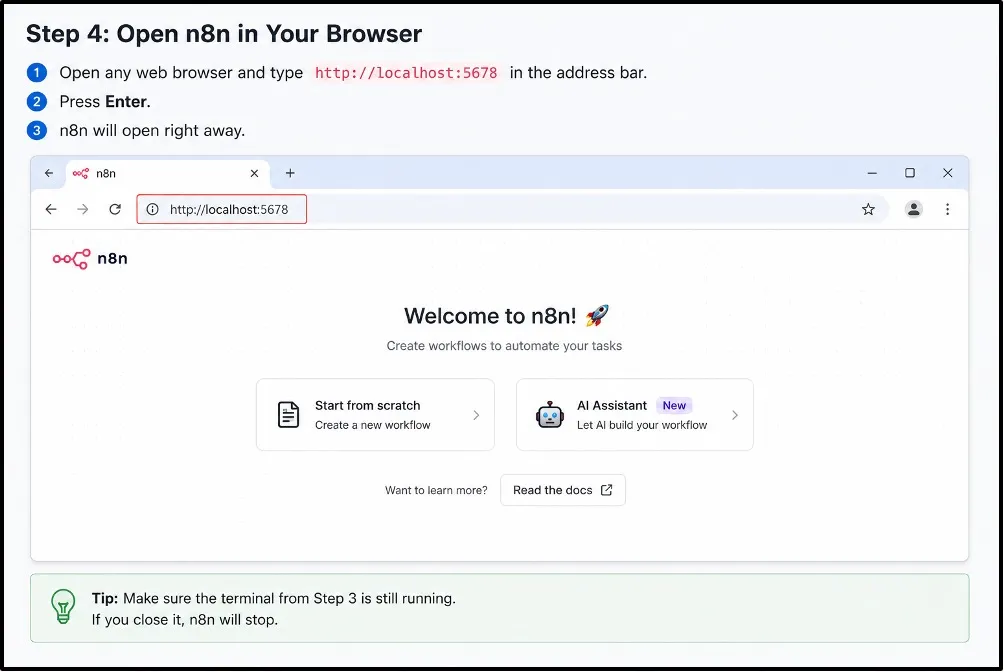
N8n is now running on your machine using the Docker Run command. This is a great way to explore and test n8n quickly. When you are ready for a more permanent and stable setup, you can move on to Method 2 below.
Method 2: Install n8n Using Docker Compose (Recommended)
Docker Compose gives you a cleaner and more stable n8n setup that is easy to manage long-term. Follow these steps carefully, and you will have a professional n8n installation ready to go.
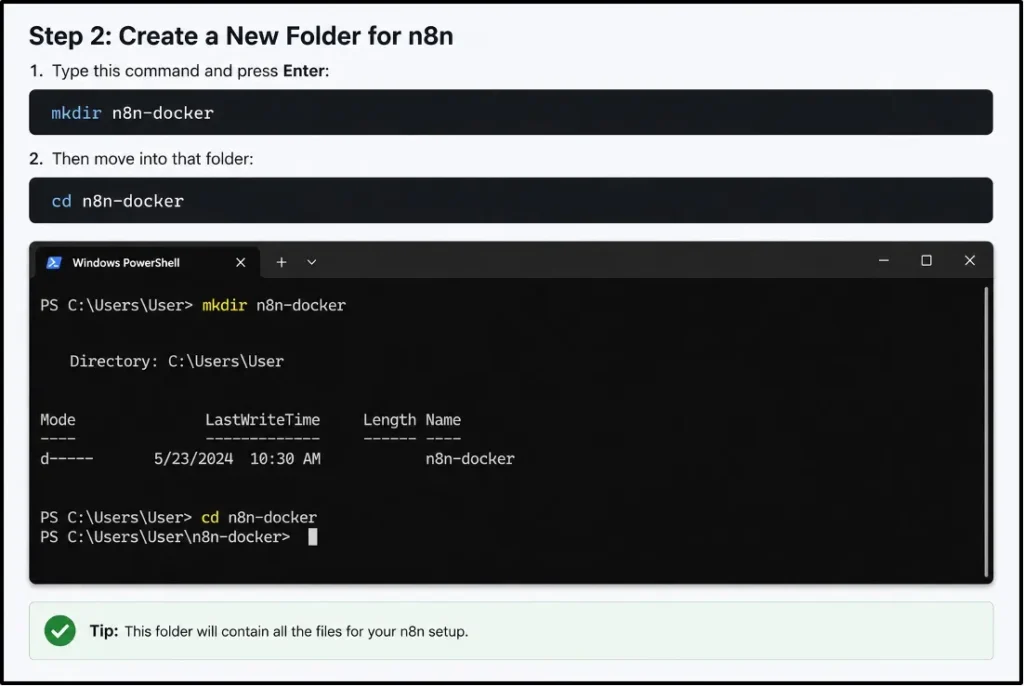
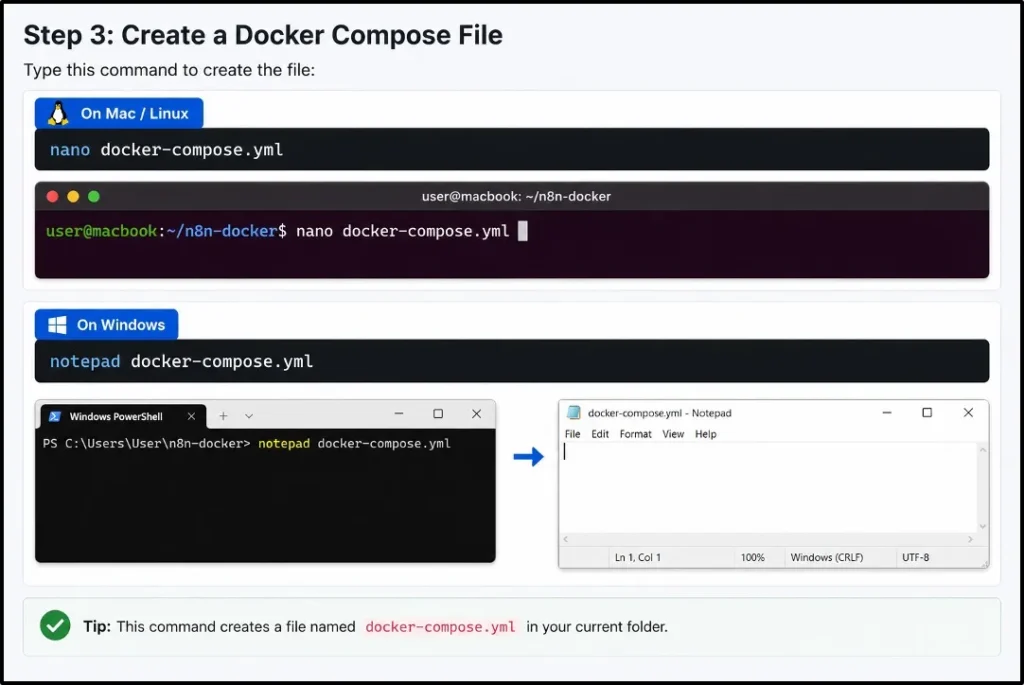
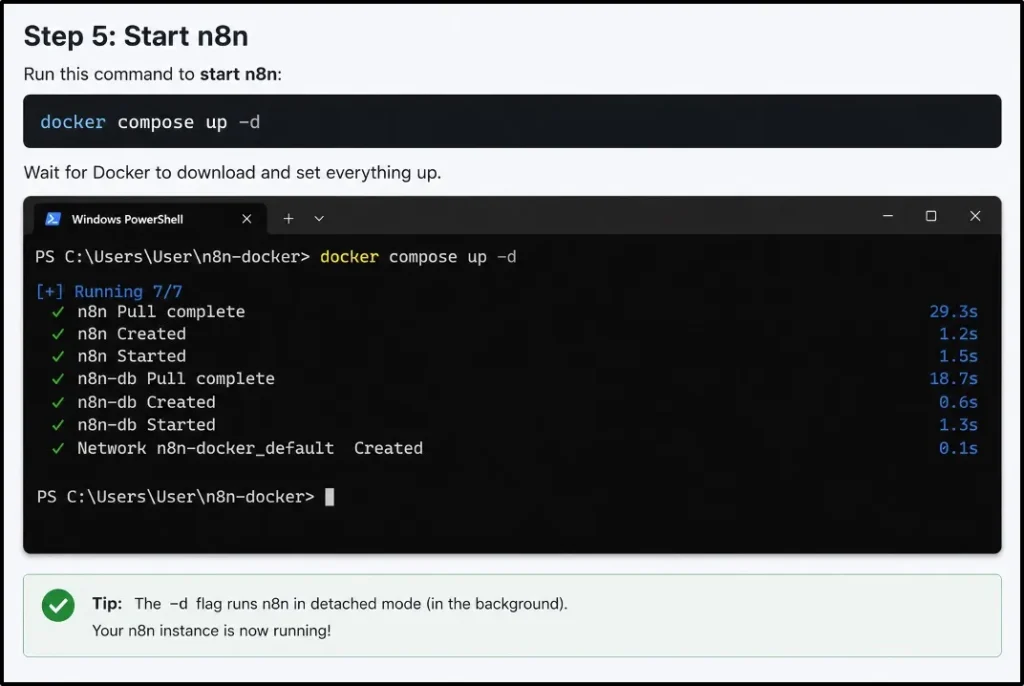
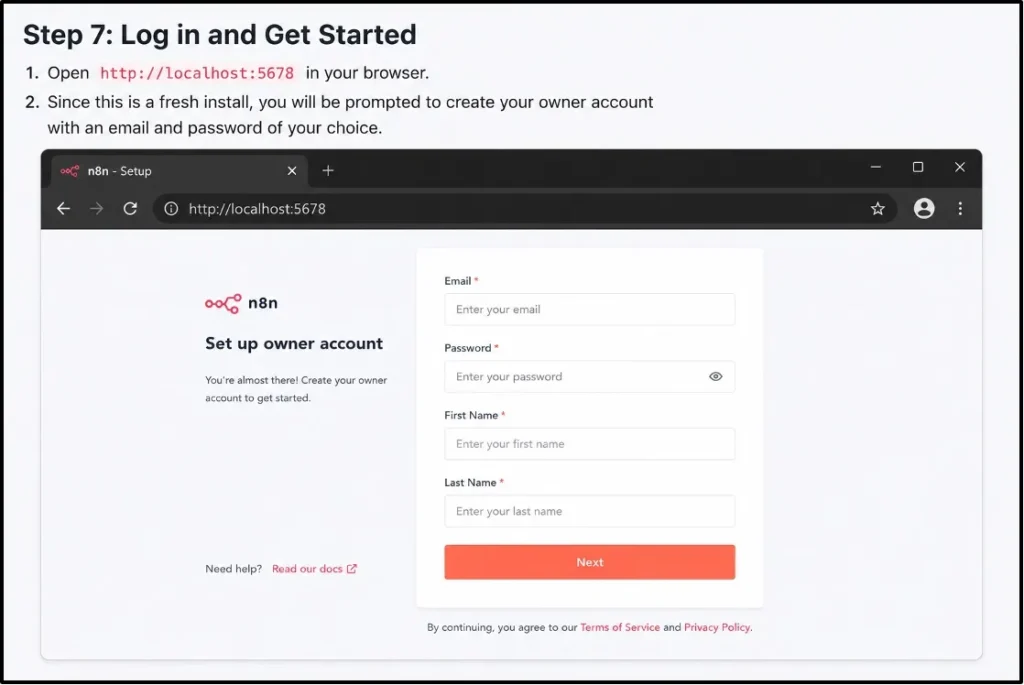
Your n8n dashboard is now live and ready to use.
You now have a fully working n8n setup using Docker Compose, the right way to run n8n for long-term use. Your workflows are safe, and your setup is stable. So now it’s time to start automating.
How to Secure Your n8n Instance
Running your n8n is exciting, but keeping it secure is just as important as running it.
If you do not have proper security, your workflows and data with credentials could be exposed to anyone on the internet. Securing your n8n instance is straightforward and simple.
Here are the most important steps to keep your n8n safe and protected:
Securing your n8n instance takes just a few simple steps, but it makes a huge difference. It’s almost like locking the front door of your automation system, and once it is done, you can work with complete peace of mind.
Common n8n Docker Installation Errors and Fixes
Running into errors during installation is completely normal, and even experienced developers face them. The key is simple: you know what the error means and how you can fix it quickly.
Here are the most common n8n Docker errors and their simple fixes.
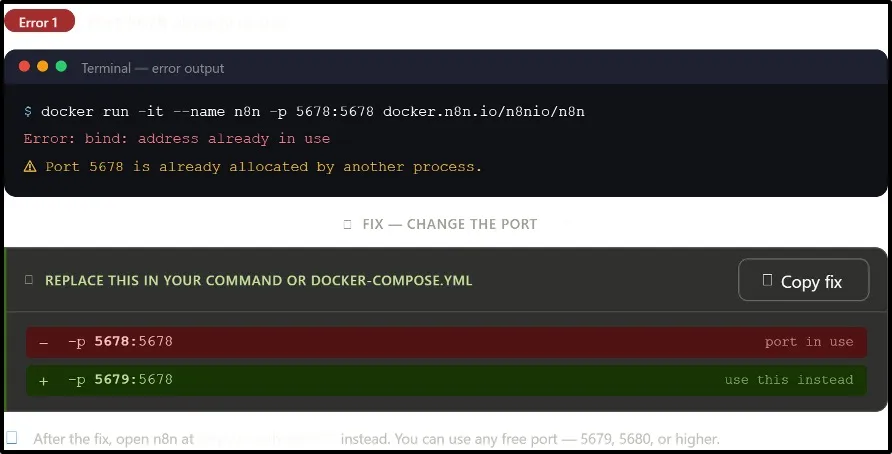
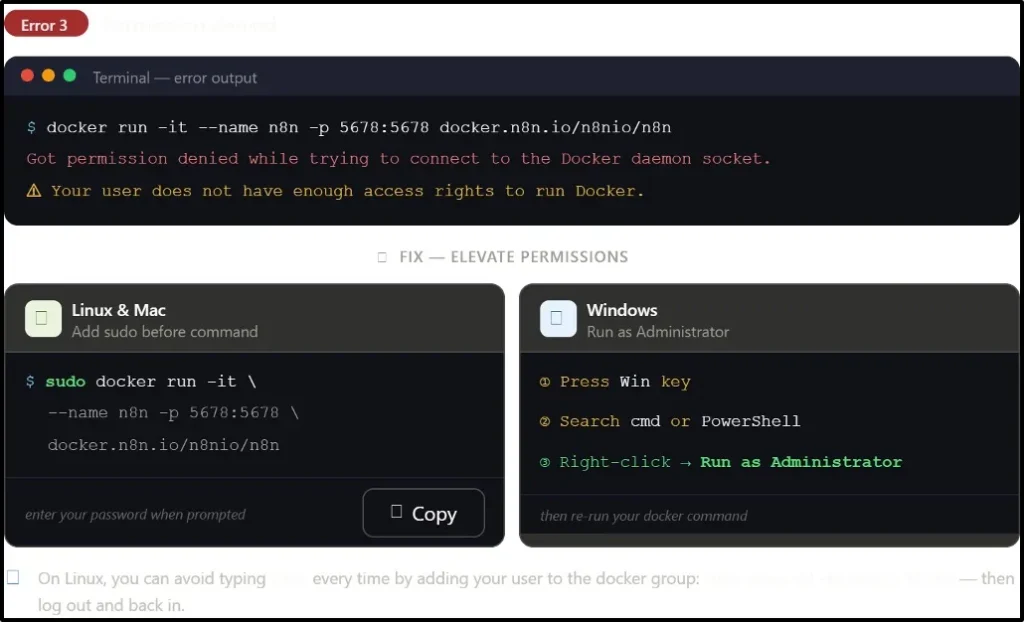
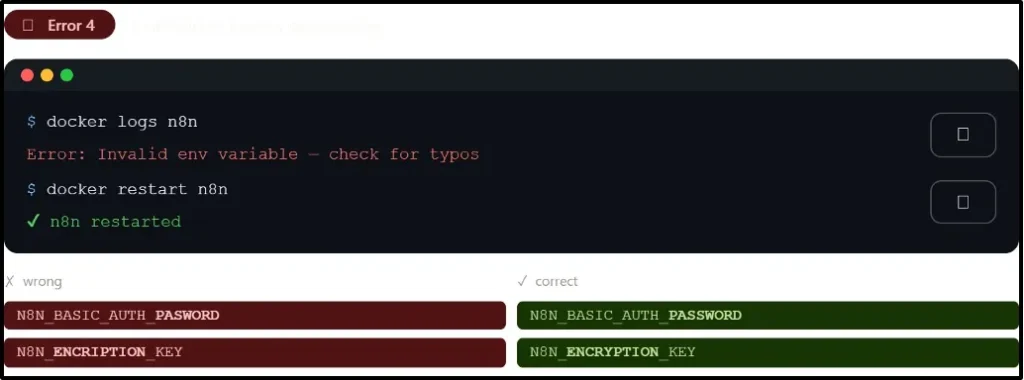
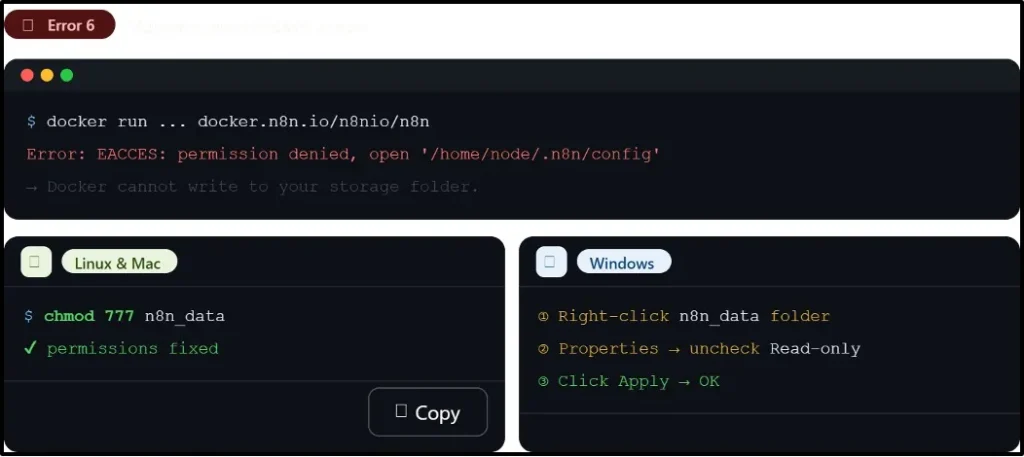
After you understand how to deploy your n8n in both of the methods and dealing with the common errors and fixes, now you know that deploying n8n on Docker is not as complicated like it looks. We have simplified everything for you in just one place.
Conclusion
How to install n8n on Docker might have seemed complicated at first, but now you can see it is much simpler than it looks.
You now have everything from understanding n8n and choosing the right installation method to all the possible errors with fixes, so your n8n experience is much smoother.
Docker gives you the most stable and secure way to run n8n for anyone from beginners to developers. You just need the right information for a few of the commands and the right setup; combining both of these will take you to a seamless experience of installing n8n on Docker.
If you ever run into issues mentioned above, refer back to the error and fixes section, and you will be back on track.
Now go and automate your world.
FAQs:
What is the default port used by n8n?
The default port n8n runs on is 5678. You just need to open your browser and type the code: http://localhost:5678; if port 5678 is taken, then you change it to 5679:5678 in your Docker file.
Is Docker Compose necessary for n8n?
No, it’s not strictly necessary, but it is strongly recommended. You can easily run n8n with a basic Docker run command for quick testing, but if you want a stable and long-term setup, then you require Docker Compose because it is always the better choice.
How can I back up my n8n workflows?
You can easily back up your n8n workflows; just go to your n8n dashboard and click settings. Here you select Export Workflows to download all your workflows as a JSON file.
Why is my n8n container restarting continuously?
This usually happens whenever there is a misconfiguration error in your setup. You can run the docker logs to see exactly what is going wrong and check your Docker-compose. yml file for any typos or wrong settings. Make sure your system has at least 2 GB of RAM available.
💡 Most Loved Article!