
| Quick Summary: Algo traders can see order execution slow from around 5ms to 300ms when markets turn volatile. The hidden cause may be CPU resource contention on an oversold shared VPS. This guide shows how to spot it and why dedicated resources can keep CPU steal near 0% for more consistent execution. |
Introduction
Have you ever wondered why your trading strategy suddenly loses money in live trading?
The reason isn’t your strategy; it’s your shared VPS. With a shared VPS, your trading bot shares CPU, memory, and internet speed with many other users.
When users are running heavy workloads at once (like during major market hours), your bot has to wait for its turn for resources.
This causes delays called resource contention, and this leads to slower orders, missed trades, and unexpected losses.
As an algo trader, you feel these delays the most, because every millisecond counts.
We’ll break down how resource contention works, why it hurts algo traders most, and what you can do to fix it so your live trades finally match your backtests.
Let’s begin.
The Short Answer: Shared CPU Fails Exactly When It Matters
Shared CPU fails because too many users use the same server’s resources at the same time. During big market events like NFP or interest rate decisions, every trader places orders at once, and your bot gets pushed to the back of the line.
This delay is called the CPU steal time. It is 1-2% in calm markets but can jump to 10-50% in volatile ones, even when your Task Manager shows low CPU usage. The result is simple: slow orders and unexpected losses.
What “Resource Contention” Actually Means
Think of your VPS as one seat in a crowded trading room. Everyone shares the same CPU, RAM, disk and network, and resource contention is what append when too many of them need those resources at the same time.
It is a very big factor for algo traders, when your EA spots the signal and sends the order, but the VPS has to wait for CPU time, so the order leaves a few milliseconds late. Even a few milliseconds can give you a worse price or an extra slippage.
This is why a strategy can work well in backtests but can lose money in live trading.
CPU Steal Time: The Metric That Kills Your Fills
If your EA executes perfectly in the strategy but misses trades live, the problem might not be your code, but it could be CPU steal time.
This hidden metric shows how often your VPS is forced to wait while the server helps other users, silently adding milliseconds of delay that wreck your fills.
What CPU Steal Time Is
CPU Steal Time is the share of time your VPS was ready to place or manage a trade, but the physical server was busy serving other users. The longer your VPS waits, the later your orders go out.
If we tell you simply, your VPS asks for CPU time, but the hypervisor (the software managing the server) says, “Wait, someone else is using it right now.”
For all the algo traders, even a small delay means slower order execution, missed ticks, and worse fills.
Normal vs Oversold: 0% vs 20-50%
Here is a clear difference between normal and oversold steal time and what each percentage tells you.
| Steal Time | What it Means | Impact on Trading. |
| 0-2% (Normal) | Healthy, lightly loaded server. Your VPS gets CPU when it asks. | Negligible latency; fills match backtest expectations. |
| 5-10% (Concerning) | Moderate contention. The server is getting busy. | Noticeable delays during volatility; occasional slippage. |
| 10-20% (Oversold) | Heavy contention: the host is oversold or overloaded. | Frequent latency spikes; missed entries and inconsistent execution. |
| 20-50% + (Critical) | Severe contention. Your VPS is frozen for milliseconds at a time. | Catastrophic for scalping/news EAs; orders fire late or not at all. |
If we say it in short, then CPU steal time on a VPS is the silent killer of live trading performance. If your VPS regularly shows steals above 5-10%, you are already losing milliseconds that matter, especially during high-volatility sessions.
Monitoring this metric helps you spot oversold hosts early and decide if you should upgrade to a dedicated core VPS or bare-metal server.
It is specifically for algo traders; keeping steal near 0% is not optional; instead, it is essential for consistent fills and reliable execution.
Shared vs. Dedicated Resources: Side-by-Side
Shared resources might save you money at the start, but they often cost you in missed trades and slippage. Here is how shared resources vs. dedicated resources trading setups compare in real trading conditions.
| Feature | Shared Resources | Dedicated Resources |
| CPU Steal | 5-50% during volatility (unpredictable) | 0-1% (consistent, near-zero). |
| Execution Latency | 2-15ms, spikes under load. | 0.1-0.5ms, stable even in news. |
| Behaviour Under Volatility | Slows down or freezes when others are active. | Keeps running smoothly; your cores are yours alone. |
| Multi-EA Performance. | Degrades after 4-8 EAs; RAM/CPU contention. | It handles 12+ EAs cleanly with proper sizing. |
| Cost | $10-$30/month (cheap but risky) | $40-$100+/month (high, but reliable) |
When you have a shared VPS, your EA competes with strangers for CPU time. During calm markets, it feels fine.
But when volatility comes, like during NFP or rate decisions, your VPS gets pushed, and that is when latency spikes and orders miss their mark.
If you have dedicated resources, your CPU and RAM are completely reserved just for you. There are no vps noisy neighbours and zero waiting. Your EAs run at the same speed if markets are quiet or crazy.
How to Tell If Your VPS Is Oversold
An oversold VPS trading may work fine when markets are quiet, but slow down or freeze when you need it most.
Here’s how you can check if your VPS is oversold before it costs you a trade.
Watch Task Manager During High-Volatility Sessions
Don’t just check the CPU when your VPS is idle; watch it during big market moves. Open Task Manager (Windows) or top (Linux) during news events like NFP, CPI, or when London/New York sessions open.
If CPU usage looks low but your trading platform lags, freezes, or feels slow, your VPS is likely waiting for CPU time. On Linux, look at the %st (steal) column at the top.
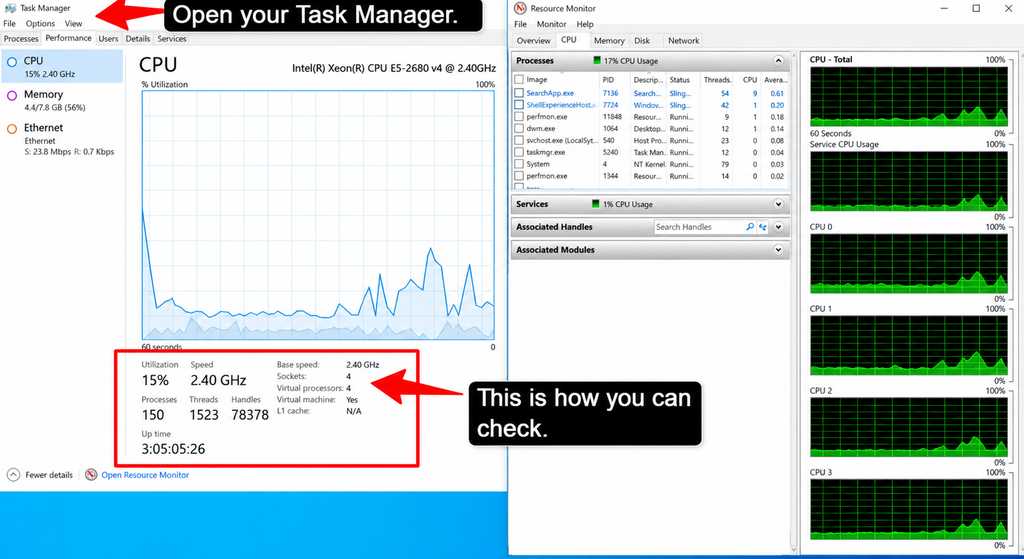
On your Windows server, high “System” or “interrupts” time with low CPU use means the same thing: your bot is stuck waiting while the server helps others.
Check CPU Steal / CPU Ready Time.
CPU steal time is the best way to spot an oversold VPS. On your Linux server, run top or type vmstat1 and look at the st column. On a good server, this should stay near 0%.
- 0-2% (Normal): Your VPS gets CPU when it asks.
- 5-10% or more: Your server is busy with other users.
- Steady 10%+: Strong sign your CPU is oversold.
| The P99 Problem: Why Average Deceives You. Your VPS shows 3ms average latency. But in 1000 ticks, if 950 execute in 1-2 ms and 50 spike to 80-150 ms, then your average looks fine. Check P99 latency (worst 1%), not the mean. A host with “12ms average, 120ms, P99″ is worse than “8ms average, 12ms P99.” |
Windows does not show steal time directly, but if your platform is slow while the CPU looks low, you are likely facing the same problem. If you steal spikes only during volatile times, your provider is overloading the server.
Benchmark Peak vs. Off-Peak Execution
Test your VPS at two different times:
- Quiet time: 2-4 AM UTC (when most traders are offline).
- Busy time: During your main trading hours (like 8-10 AM or 1-3 PM, your broker’s time).
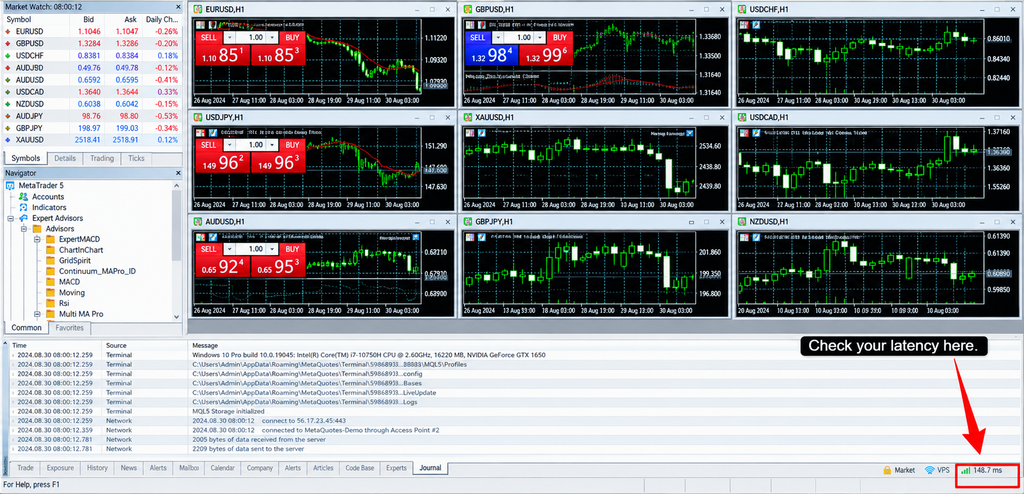
You can use simple tests like pinging your broker, checking MT4/MT5 latency, or timing how fast an order goes through.
If results are 20-30% slower during heavy hours, your VPS is sharing resources unevenly, which is a clear sign of overselling.
Ask Your Provider the Right Questions
Do not settle for vague answers. You can ask directly:
- “Are CPU cores dedicated or shared?”
- “Can you share uptime or performance reports for your trading servers?”
If they say things like “up to X cores,” “burstable CPU,” or “fair use policy,” they are likely overselling. Good trading VPS providers will clearly explain their setup, show steal time data, and confirm if they use full isolation (like KVM).
If your VPS shows high theft during market moves, slows down at peak times, or your provider won’t give a clear answer, it is time to switch.
If you are an algo trader, then understand that stable speed is not optional for you; it is what keeps your live trades matching your backtests.
Is It Always the Host? (When It’s Your Setup Instead)
No, every slowdown is not your host’s fault; sometimes the problem is not your CPU steal, it is your own platform setup bloating resources, inefficient code, or running so many charts on so little RAM.
Before you blame your host, check these common self-inflicted bottlenecks.
- Bloated Charts and So Many Indicators.
MetaTrader (especially MT4) loads every indicator and every historical bar into memory.
If you have 20+ charts open, each with 10+ indicators and “max bars in history” set to unlimited, your RAM and CPU usage can skyrocket, even on a good VPS.
- MQL-4 Architecture: Single-Threaded and Tick-Heavy.
MT4 runs on a single CPU thread; it means that no matter how many cores your VPS has, MT4 can only use one.
If your EA calls functions like iRSI(), iATR(), or other indicator buffers on every tick inside OnTick(), it creates a heavy CPU load on that single thread, causing lag even with 0% steal time.
- %iowait vs %steal: Is it Disk or CPU?
On Linux VPS, two of these metrics tell different stories:
- %iowait (wa): CPU is waiting for slow disk reads/writes; your setup or storage error.
- %steal (st): CPU is busy helping other VMs >> host overselling.
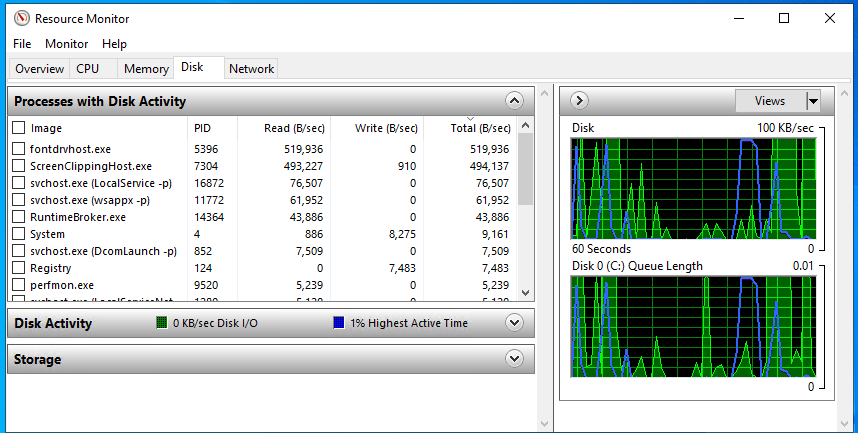
If %wa is high (10%+) but %st is low (<2%), the issue is likely disk I/O and not your provider. This happens when your EA logs excessively, writes large CSVs every tick, or runs on a VPS with a slow HDD instead of SSD/NVMe.
- RAM over 85%: The Silent Killer.
When the RAM usage stays above 85-90%, Windows starts using the page file (virtual memory on disk), which is 100-1000x slower than real RAM. This causes delayed order execution, and your platform freezes, even if your CPU looks fine.
So, before switching to providers, audit your own setup first. It often happens that trimming charts, optimizing code, or adding RAM solves the problem much faster and cheaper than migrating your servers.
How Many EAs Can Run Before Shared Resources Break
There is no fixed limit because every EA uses different amounts of CPU and RAM. A simple EA with a few charts needs fewer resources than a tick-heavy EA running many indicators.
Based on our research, the following limits offer a practical estimate for shared VPS users:
- 1-2 vCPU with 2GB RAM: This can usually run 2-4 simple EAs across 1-2MT4 terminals. The VPS may start slowing when RAM usage goes above 85% or CPU time increases during volatile markets.
- 2-4 vCPU with 4GB RAM: It can generally handle around 3-4 EAs across 2-3 terminals. The performance may also drop if the EAs use heavy indicators or if you run more than six charts per terminal.
- 4-6 vCPU with 8GB RAM: It can usually support around 6-12 EAs across 4-6 terminals, and it may struggle with more than 12 complex or tick-heavy EAs.
- More than 6 EAs: At this point, consider upgrading to at least 4vCPU and 8GB RAM, or split the EAs between the two VPS instances to reduce resource contention.
| Note: These figures are based on our research and are practical estimates, not fixed limits. Your actual capacity depends on the EAs coding, number of charts, indicators, and tick activity. Always monitor CPU, RAM, latency and CPU steal time before adding more EAs. |
The Fix: Dedicated Resources and How to Choose Them
If shared VPS resource contention is causing missed trades and slippage, the solution is simple: you just have to move to dedicated CPU, reserved RAM, and fast NVMe storage.
Here is what to look for, and why it even matters for your algo trading.
Dedicated vCPU and Reserved RAM
When you have a shared VPS, your “vCPU” is just a time-slice on a physical core, shared with dozens of others. During volatility, that slice shrinks, and your EA waits.
But when you have a dedicated vCPU, you get a guaranteed core (or cores) that never get handed to neighbours.
- Shared vCPU: Tick processing—2-15 ms (unpredictable).
- Dedicated core: Tick processing—0.1-0.5 ms (consistent).
Reserved RAM works the same way; it is memory set aside only for your VPS, so you never get swapped out when others use more. You can aim for at least 2 GB per MT4/MT5 terminal, plus 0.5-1 GB per EA.
NVMe Storage That Isn’t Shared
NVMe drives are much faster than SATA SSDs and 20-50x faster than HDDs, especially for random reads/writes.
While NVMe won’t lower your network latency to the broker, it stops platform freezes, loads the charts much faster, and keeps the disk speed from slowing down during big market moves.
Make sure your provider uses 100% NVMe storage and not just SSD, which can easily mean slower types or shared hard drives.
99.99% Uptime as the Baseline
When you’re doing live algo trading, 99.99% uptime is the minimum you should accept. Anything less than this figure, like 99.9%, simply means you could easily miss your trades during important sessions.
Most of the top trading providers now offer 99.999% uptime, which is -5 minutes per year, often with backup power, network, and hardware to keep you running.
When you are picking a provider, you should always look for the ones that clearly offer a dedicated CPU core, reserved RAM, 100% NVMe storage, and a 99.99% uptime guarantee.
Providers like QloudRDP, for example, give you dedicated AMD EPYC cores with full isolation, so your EAs never wait on other users.
Frequently Asked Questions (FAQ)
What is CPU steal time in a VPS?
- CPU Steal time in a VPS is the percentage of CPU cycles your VPS didn’t get access to because the host hypervisor allocated those resources to other virtual machines. High steal time (>5%) means other customers’ demands are impacting your performance, causing delayed trade execution and slippage.
Why does my forex VPS freeze during news events?
- Your forex VPS freezes during news events because too many users are using the same server, maybe your hard drive is very slow, or there are many traders available on your server.
How do I know if my VPS is oversold?
- You can know this by asking your provider directly, or you can check if your VPS becomes slow at busy times like 9-10 AM when the market opens.
Is a dedicated resource worth it for algo trading?
- Yes, it is, because then your trade executes when news happens very fast. You can easily run many trading robots at once, and your trades can happen very quickly.
How much CPU steal is too much?
- 0-1% – Perfect, there is no issue.
1-3% – Good, as in okay to use.
3-5% – Getting bad; your trades might be slow.
5%+ – Very bad; you need to change your provider now.
How many EAs can one VPS handle?
- Small VPS – 3- 4 robots.
Medium VPS – 6-8 robots.
Large VPS – 12- 15 robots.
If your VPS feels slow, run fewer robots.
Conclusion: Don’t Let a Shared Host Trade Against You
When you use a shared cheap VPS, you share your server with many other traders. While you are sleeping, another trader is using your CPU.
When you want to trade fast, they are also trying to trade fast. The server gets slow, and your trades happen late.
This is like running a race with someone holding your arm back. It is highly recommended to pay extra for a dedicated resource, so the CPU is only yours; there are no other traders slowing down your server, and your trades happen instantly.
If you want to win at trading, buy a good VPS with dedicated resources and don’t gamble on a shared cheap VPS.