

As a young programmer, you might come across many errors while running your code. Well, it isn’t always your mistake because in many cases, version mismatch also triggers errors like PIP warning and module mismatch. Even professionals face these issues, and solving each error line by line can affect your deadline.
So, instead of fixing these issues, you can check python version in cmd to get rid of them completely. These problems appear when your Python command files and libraries are not in sync, but if you already know the version, you can run your code smoothly and even compile a pre-built code.
In this blog, our tech experts have listed the 3 primary commands (- – version, – V, and Python3) that you can type in the CMD prompt to verify the Python version. We’ve also explained the difference between Python – – version and py – – version so that you can choose the fastest way.
Why You Need to Know Your Python Version in CMD Right Now
One of the main reasons to check python version in cmd is to ensure that your program runs smoothly. Furthermore, it also allows you to compile codes written by other developers and install new features and updates.
If you’re still confused, then read the points given below:
To avoid incompatibility
Different versions of Python use different grammar, meaning that if you write the latest code in your command interface that runs an old version, you’ll see a SyntaxError. Therefore, checking the version ensures your interpreter understands your syntax. Your code won’t even start if you don’t check python version in cmd.
Debugging Environments
The PC you are using may have a pre-installed Python version (System Python) by the operating system. These built-in installations may not match your newly installed library and may show a bug error, which is actually a configuration error. Fixing these errors can disturb the OS; therefore, you should always check the version.
Handling Package Dependencies
There is a library containing pre-built files created by other developers that you can compile into your current Python file to develop a complete program. If both the files are prepared on different versions, then your program may crash or show ModuleNotFoundError. This is why you need to check python version in cmd windows.
Adding new features
You cannot use new features and tools like f-strings, type hinting, or structural pattern matching if you’re stuck on the older version of Python. Along with these, the security features may also not work, which can slow down productivity. Therefore, verifying your version in CMD ensures you can utilize the latest updates.
3 Primary Commands to Check Python Version in CMD
And now it’s time to learn how to check python version in cmd windows! We have listed three commands through which you can verify the active version on your system. Just follow the steps mentioned below:
Using the –version Flag
(You will get a black interface as shown in the screenshot)
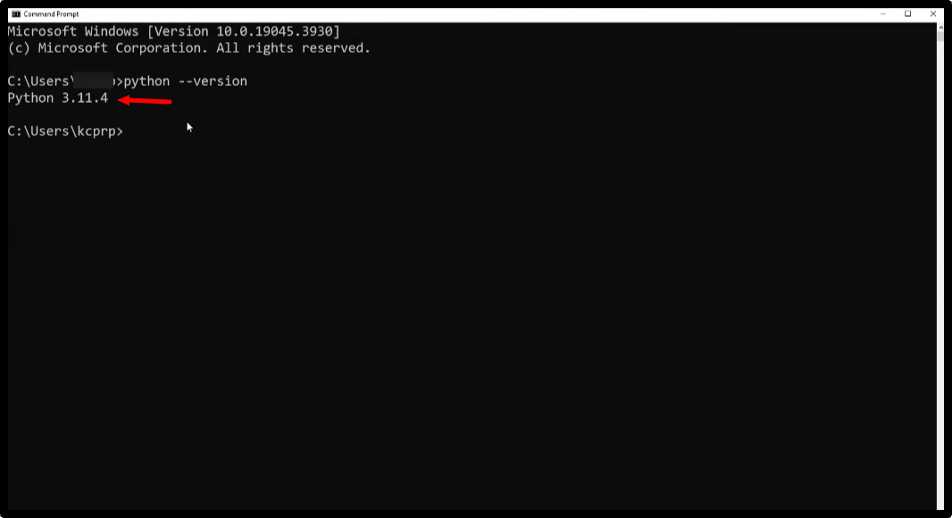
The Shorthand -V Command
-V is the short form of – – version. Both do the same thing, but -V gives faster output. That’s why developers use -V when they have to check multiple environments or server compatibility.
(You’ll get the command prompt screen)
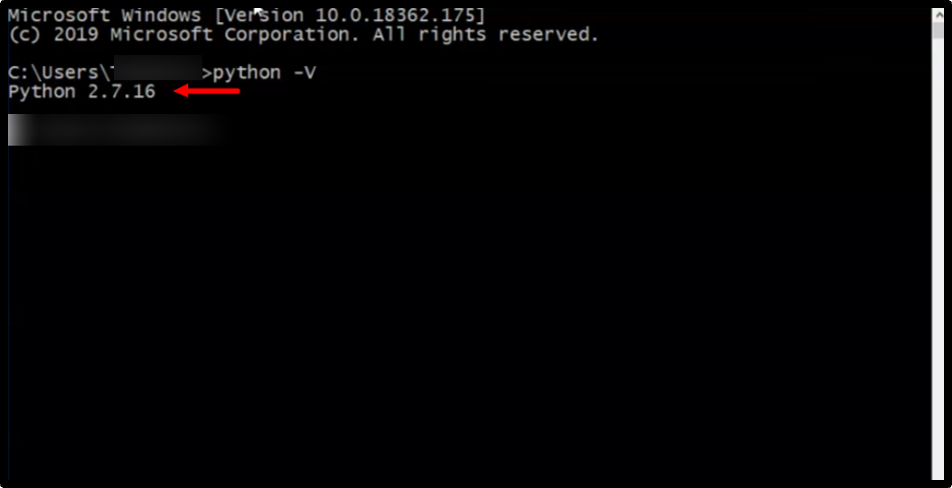
Note: If you use a small v in the CMD prompt, the result may be different.
Handling Python 3 specifically with python3
Before we tell you the third method, let’s understand what Python 3 actually is.
Python 3 is the latest version of Python, launched after identifying the gaps in Python 2. This new version allows users to read syntax more easily because it uses object-oriented programming, allowing developers to reuse or scale code. It also offers third-party modules, pre-built libraries, and uses an interpreter to execute code line-by-line.
Follow these steps to check the active Python version in latest Mac and Linux systems:
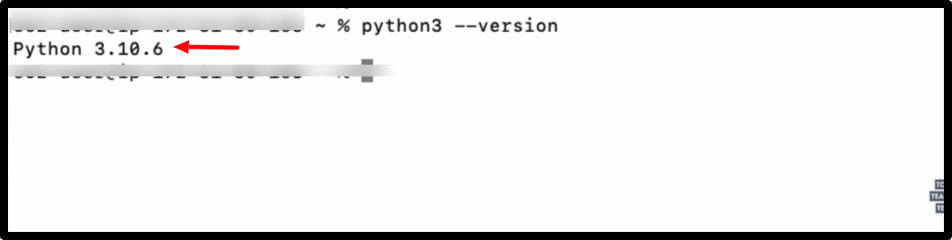
This works only with Unix based system like modern Mac or Linux, as they have Python 3 pre-installed. So, if you type this (python3) command in Windows, it will open the Microsoft Store so that you can install Python 3. And once installed, it will show a similar output as you see in the above screenshot.
What is the difference between python– version and py –version?
Both Python – – version and py – – version perform the same function of determining the active Python version on your PC, but their working mechanisms are different. One requires an address, while the other does not. Let’s take a closer look at the differences between the two with the help of a chart.
| Python – – version | Py – – version |
|---|---|
| Users need to specify the system path | No need to specify the system path |
| Selects any version that appears at the top | Selects the newest version |
| Needs manual intervention for updates | No need for manual intervention |
| Can manage only a specific Python version | It can handle multiple Python versions |
| Works with Mac, Linux and Windows | Works only with Windows |
Final Words
It’s important to check your Python version before you start programming, especially if you’re a beginner. Version mismatches can cause numerous errors when you run your code. Many newbies spend time rewriting their code because the prompt displays incompatibility as bug errors.
That’s why it’s very important to check python version in cmd! This will give you error-free programs and help you to use dependencies to speed up productivity. Along with this, verifying the correct version of Python in command prompt will allow you to download more features like type hinting and security tools as well.
In this blog, our technical experts have explained three easy ways (- – version, – V, python 3) to find out the Python version using the CMD prompt. To help you out, we’ve also pasted the output screenshot so you don’t have any confusion.
At the end of the blog, we’ve also explained the difference between Python versions and Py version so you can easily identify multiple Python versions installed on the same system.
FAQ
Q1: How do I check my Python version in PowerShell vs CMD?
A: To check Python version in PowerShell, open Windows PowerShell >> type python – – version or (Get-Command python). Path. In CMD, open the command prompt >> type py – – version >> or type python -V.
The only difference between these two is that PowerShell shows a long and accurate error message compared to the CMD prompt.
Q2: How to Install Python on Windows
A: To install Python on Windows, visit https://www.python.org/downloads/ >> click Download Python install manager >> then, choose the Windows installer (64-bit) >> download the .exe file >> click path >> then click install now. After installation, open a CMD prompt or PowerShell >> check the downloaded Python version.
Q3: How do I check the Python version using the interactive shell?
A: To check the Python version in the interactive shell, open CMD or PowerShell >> type python, py, or python3 >> press enter. The information of Python version will appear on the screen.
Q4: How to check which Python path CMD is using?
A: To check which Python path CMD is using, open the command prompt and type “ where python.” It will display the active version and the other hidden versions of Python.
Q5: Can I Check Python Version Without Installing Anything Extra?
A: Yes, you can check the Python version without installing anything extra. In Windows, press the Windows key + R >> type CMD in the search bar. If you’re using Mac/Linux, then open the terminal from utilities.
Q6: What If Python Is Not Recognized in CMD?
A: If you get a message saying that Python is not recognized in CMD, then it means that python.exe or the Python installation directory is missing in the Path environment variable. To avoid this, you need to check if Python is installed on your system or not.
For this, type python – – version or python – V in CMD, Powershell or terminal. If installed >> open Edit the system environment variables >> select Path.
💡People Also Browse: