
Windows RDP is one of the easiest ways to access a PC from anywhere, but doing it the right way can confuse a lot of users.
A small mistake in the setup process can stop the connection completely. It can leave you stuck with confusing error messages.
That’s exactly why I made this guide.
I’ve set up Remote Desktop on different Windows versions several times. I’ve even solved common connection problems and tutored every single step with clear screenshots.
If you follow my guide, you won’t have to guess what to do or search for missing steps. I’ll tell you the entire setup process. Here, I’ll explain the things that you need to set up Windows RDP and share practical tips that make remote desktop work smoothly from the very first attempt.
By the time you finish this guide, you’ll have a fully configured Windows remote desktop connection that you can depend on for your remote work.
Let’s get started! How to Set Up Remote Desktop rdp on Windows
What Is Windows Remote Desktop (RDP)?
Windows Remote Desktop is a system that allows you to connect to a Windows computer from another device, even if that computer is far away from your location.
It gives you a secure, protected connection so you can see the remote screen and you can control it just as if you are sitting in front of that computer.
Let’s take an example to make you understand it!
If you leave an important file on your office computer, you do not need to go back to the office. Instead, you can open Remote Desktop on your laptop, tablet, or phone and connect to that computer.
And once you get connected, you can open files, use office apps, make changes in the settings, or you can even do your work as usual.
RDP acts like a connecting bridge between your device (it can be a Windows PC, iOS, Android mobile, your tablet, or your Chromebook) and the remote computer.
Common users of RDP:
These are some of the very common and important users of a remote desktop server:
RDP works best for anyone who needs to use a computer they are not physically sitting in front of.
It bridges the gap between where a person is and where the computer they need actually sits, making remote and flexible work possible across almost every industry.
Requirements for setting up Windows RDP
Before you jump into setting up your Windows RDP, first you need to know what things you require for it. Don’t be in a hurry because keeping in mind the basic specs of setting up a remote server will determine how your work is done in the future.
Here’s what you actually need.
| Requirement | What You Need |
|---|---|
| Windows Edition | Windows 10/11 Pro, Enterprise, or Windows Server. |
| Operating System | Windows Server 2019/2022 |
| Server IP Address | A unique IPv4 address is assigned to your RDP. |
| Port | RDP uses the default port 3389. |
| Username/Password | Credentials created during setup should follow strong password practices. |
| Hardware | Minimum 4 GB RAM and 2 vCores for your basic tasks. |
| Internet Connection | At least 500 Mbps – 1 Gbps for a stable session and power tasks. |
Once you get these basics right on your laptop, you are sorted, and you are already halfway to setting up your remote server. Now let’s move forward towards setting up your Windows Remote Desktop server.
Get a Ready-to-Use Windows RDP Server (No Setup Required)
Are you now ready to get your remote desktop up and running for real?
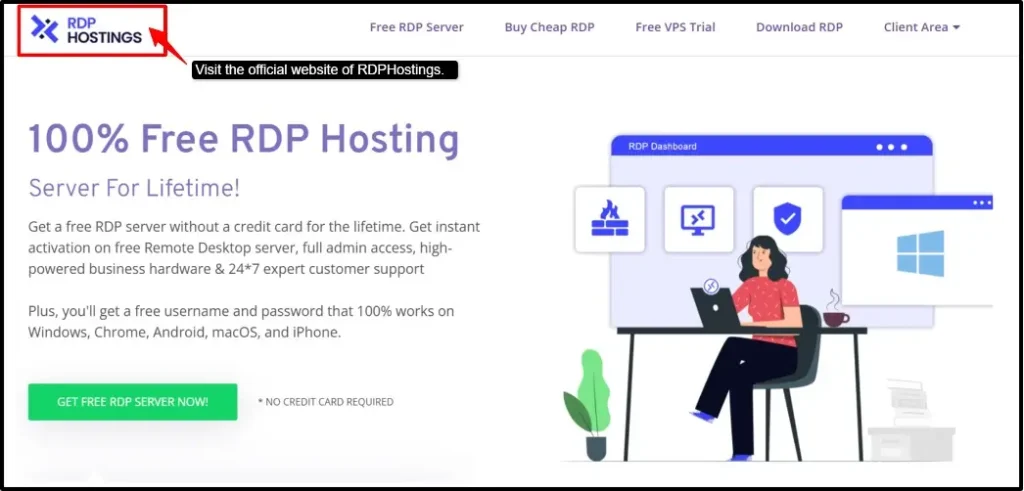
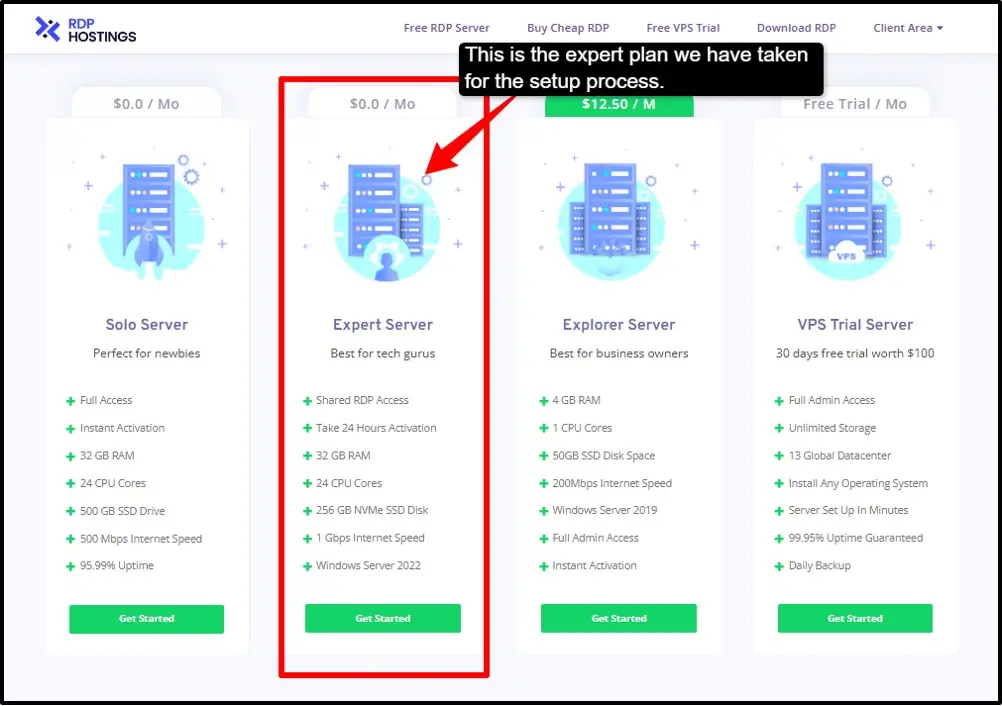
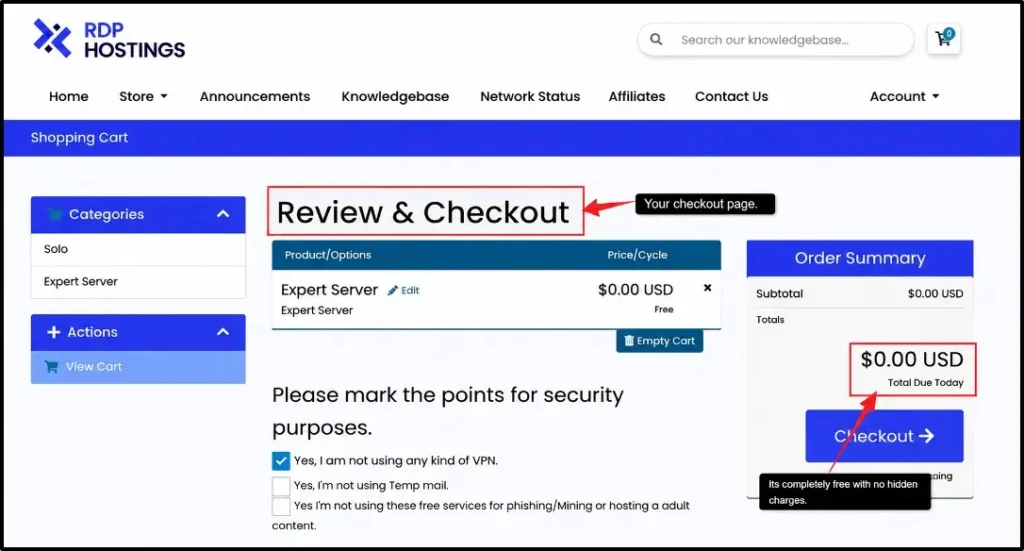
Just follow these simple steps, and you require zero technical expertise or skill for this setup. We have given simple and clear steps so you’ll have your RDP ready.
Note:
If you want direct or full admin access, you can try RDPHostings’s VPS trial plan.
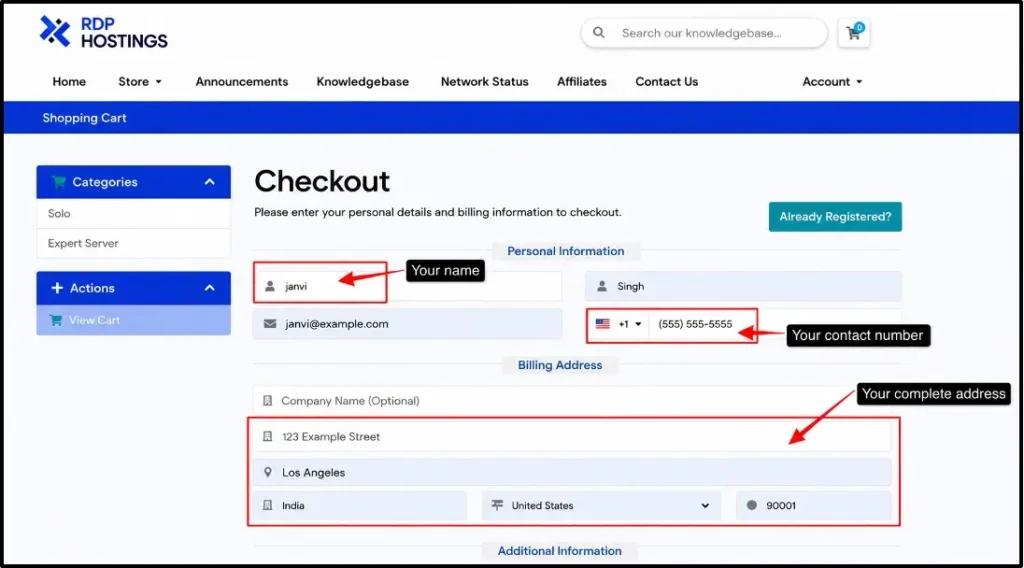
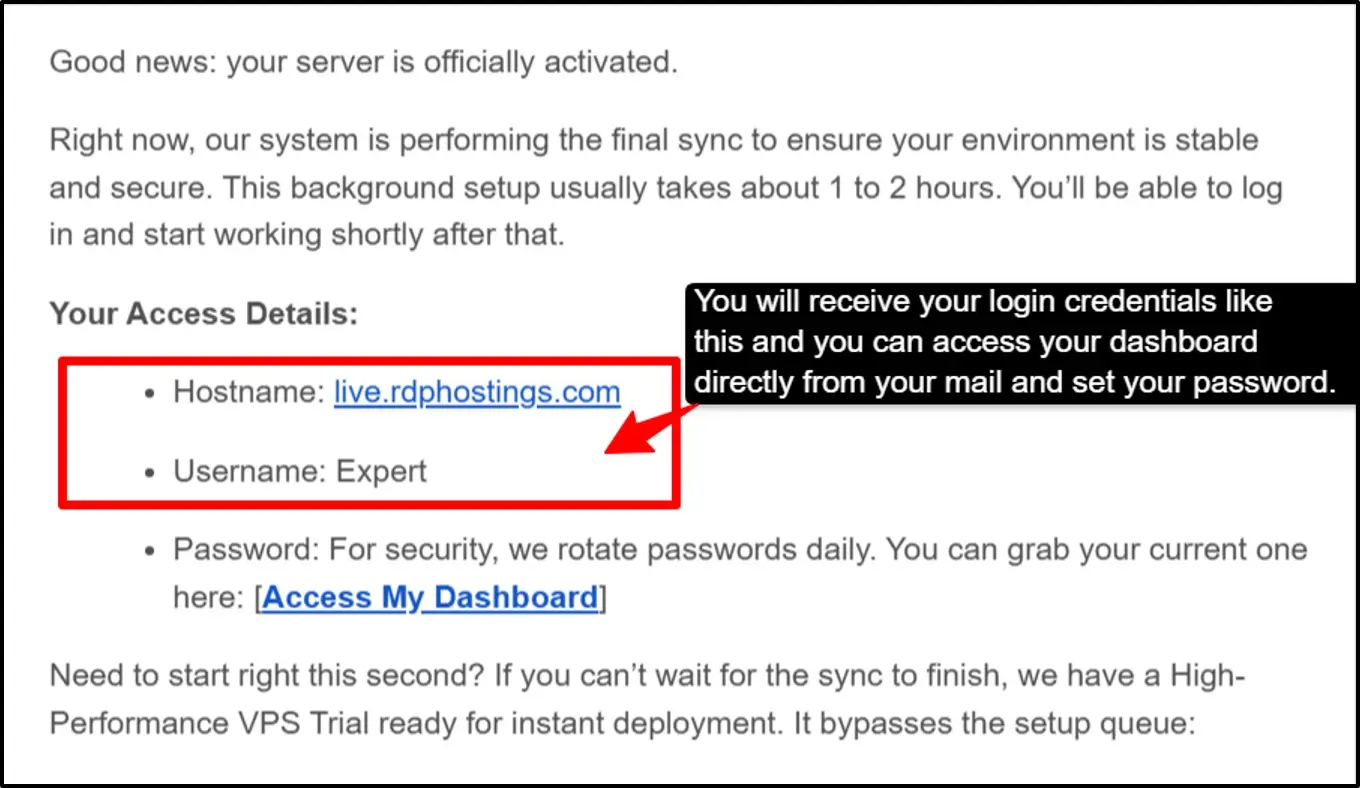
Note:
Save your RDP credentials somewhere safe (like a password manager) the moment you receive them by email. You’ll need the IP, username, and password every time you reconnect, and hosting providers usually won’t resend them automatically.
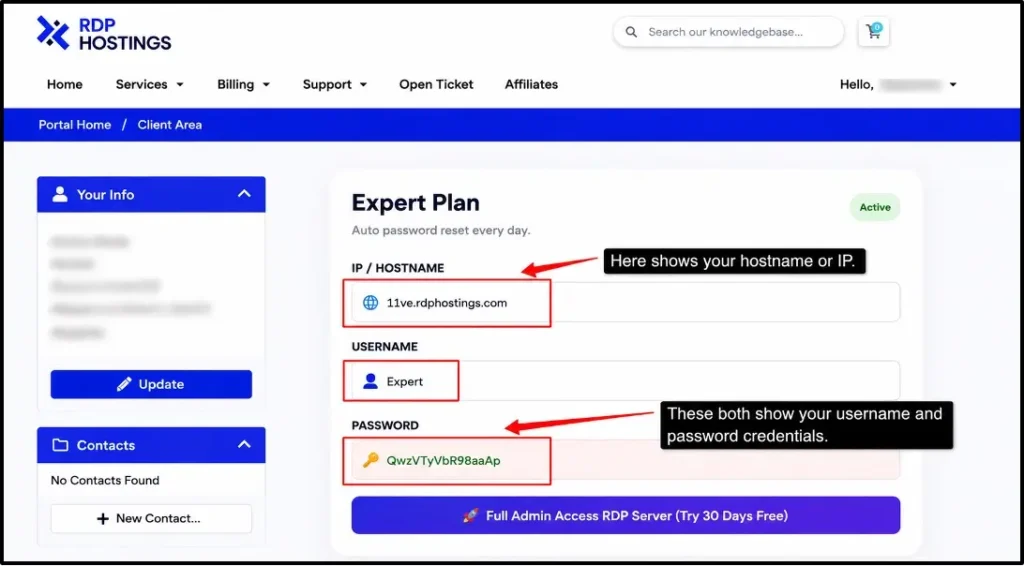
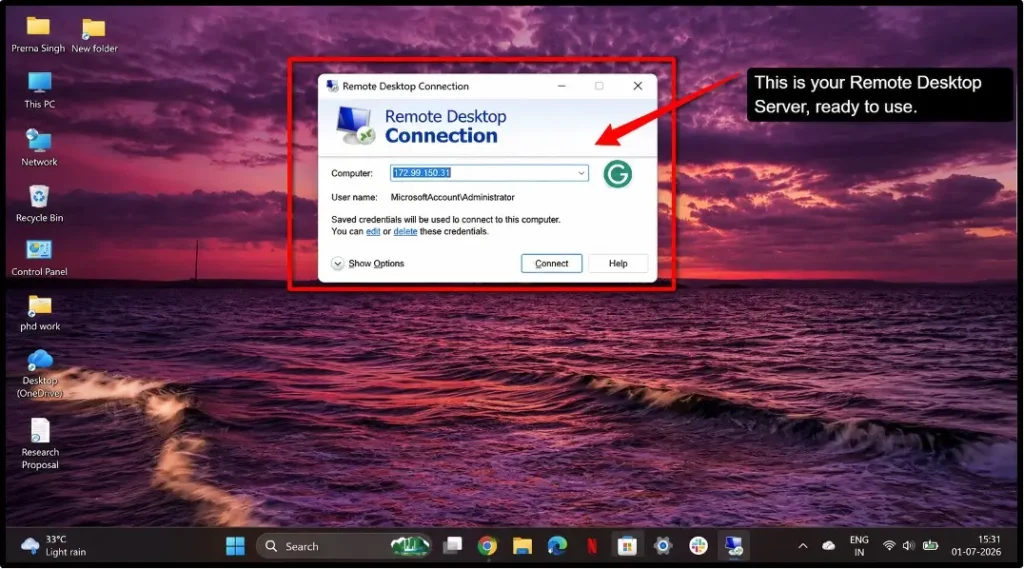
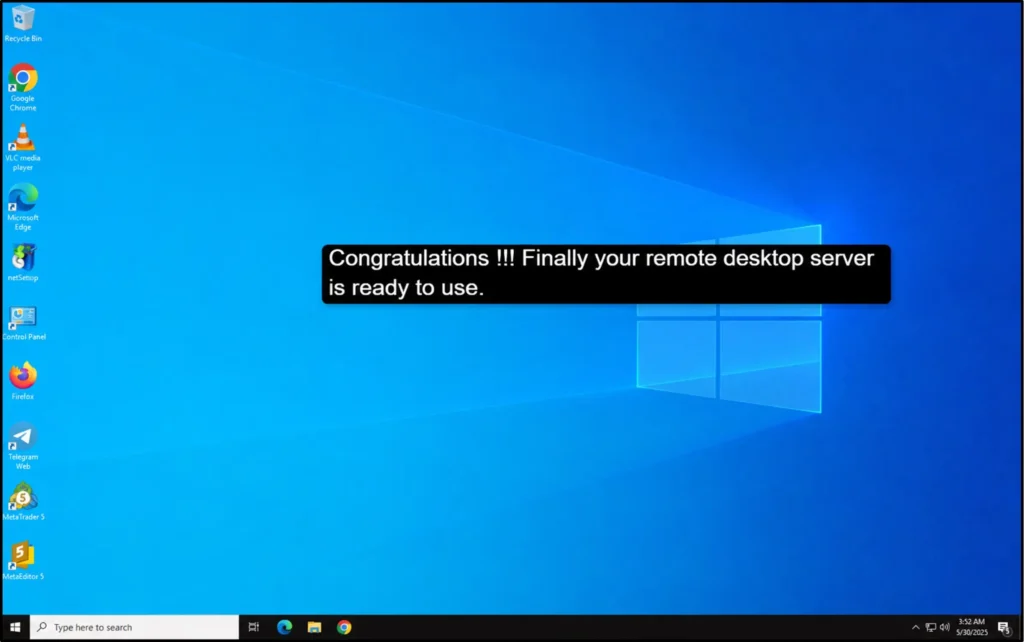
Finally! You’re in, and your Windows RDP will now load on your screen; it’s fully functional and ready to use just like a physical PC.
Note:
If you want a clearer and more visual explanation of the steps, you can refer to this video and easily set up remote desktop RDP on Windows
Common RDP Setup Errors and How to Fix Them
RDP setup problems are mostly about things like your connection cannot reach the host or the credentials not being accepted.
So below, what we have done is that we’ve tried stating a few common errors while setting up Windows RDP and how we can fix those issues right then and there:
- Connection issues/timeouts: This usually means your target PC is either turned off, asleep, or Remote Desktop was never switched on there.
- NLA Authentication error: The client and host just cannot agree on how to verify your identity before starting the session.
- Access denied on login: It could happen that your password is correct, but Windows still refuses the connection.
- Black screen after login: Your remote desktop connects, but you only see a black screen.
- RDP port blocked by firewalls: Port 3389 is being blocked, so the connection never gets through.
Note:
Never expose port 3389 directly to the open internet.
Always pair RDP with a VPN, firewall IP restriction, or a hosting provider that secures access for you.
An unprotected RDP port is one of the most common entry points for attacks.
RDP issues can genuinely feel frustrating, but almost every problem has a straightforward fix. You can start by checking the basics like the IP address and firewall settings, and if that looks fine, move on to checking user permissions.
Once the setup is done correctly, your remote desktop can be a very reliable and powerful technology you can use and it will let you access your Windows PC from anywhere in the world.
What Can You Do With a Windows Remote Desktop?
Windows Remote Desktop is one of the most useful built-in technologies Microsoft offers. It lets you connect to another Windows PC over a network or the internet and control it completely as if you were sitting right in front of it.
Here are some useful ways for all of you to use it:
Conclusion – How to Set Up Remote Desktop rdp on Windows
Remote Desktop Protocol is something that sounds technical at first, but once you understand it, it is actually very simple to set up and incredibly useful technology that anyone can use.
If you have never been able to access your PC from far away and you need a file, or you want to access your files from anywhere, a remote desktop server can solve this instantly.
RDP is exactly what you need. Everything has been covered here, from setting it up to fixing the most common error in situations that any regular Windows user can do, and you don’t even need to call an IT professional for this.
The best part is that your RDP is now ready on your Windows PC and completely free and ready to use.
Once you try it and start using it for your day-to-day work or even heavier tasks, there is no coming back from it.
FAQs:
What port does Remote Desktop use?
Remote Desktop uses port 3389 by default.
Is RDP safe?
Yes, RDP is safe. But it requires you to set it up properly, as you should never expose it directly to the internet. Enable NLA and require MFA and strong passwords; keep it fully patched and restrict access through the firewall to trusted IPs.
Can I use Windows Remote Desktop on Mac?
Yes, you can. Microsoft has an official free app called Microsoft Remote Desktop available on the App Store. It works smoothly and gives you full access to your Windows PC straight from your Mac.
How to connect to RDP from Mac?
Download the Microsoft Remote Desktop app from >> Mac App Store for free >> open it >> click. Add the PC >> Enter the IP address of your Windows computer >> add your Windows username and password >> hit Connect. That is all you need to do.
💡 Most Loved Article!